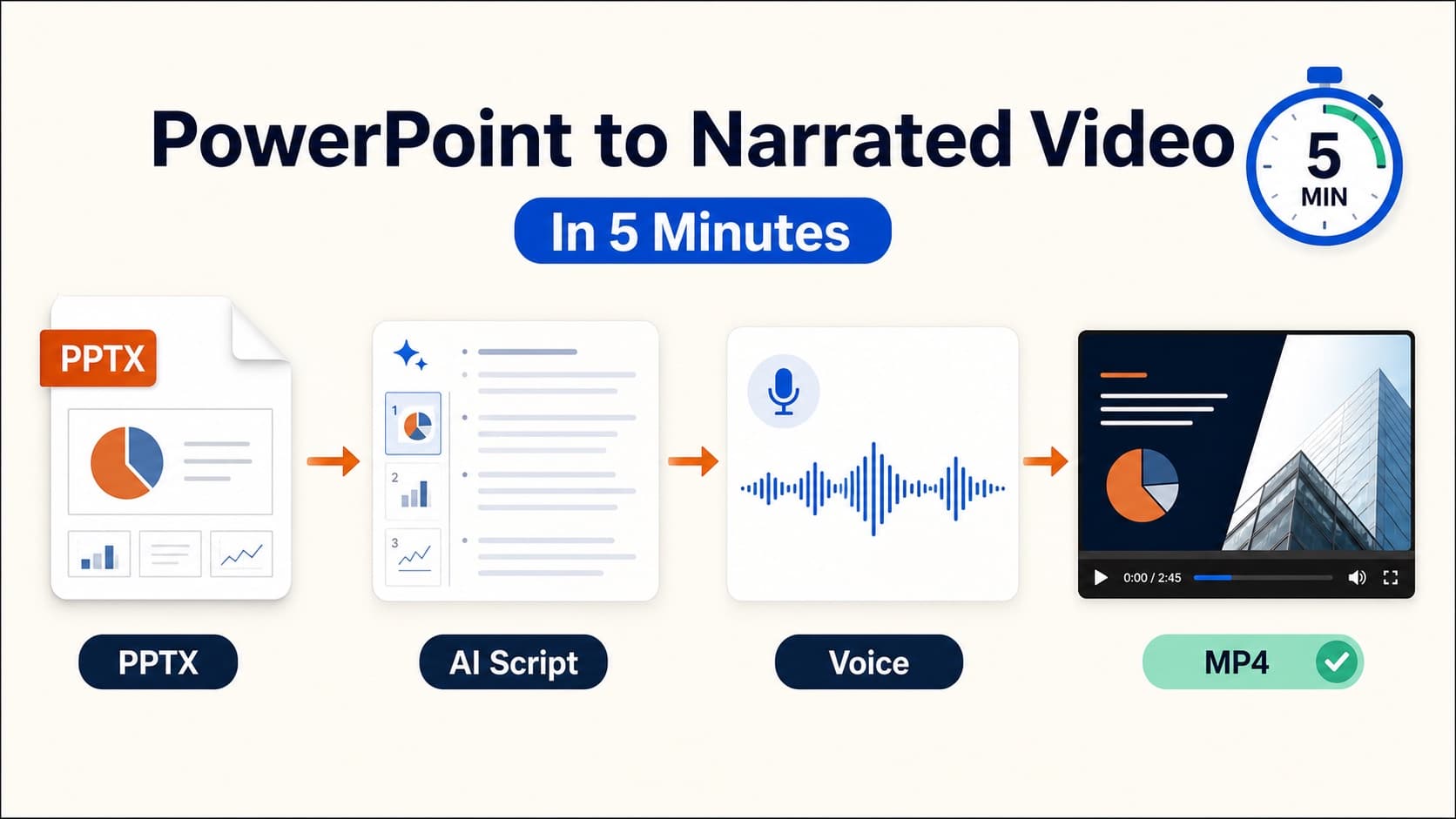
How to Convert PowerPoint to Video with Narration
Learn how to convert PowerPoint to video as a narrated MP4. Compare PowerPoint export, screen recording, and AI voiceover—then export a reusable PPT to video workflow.
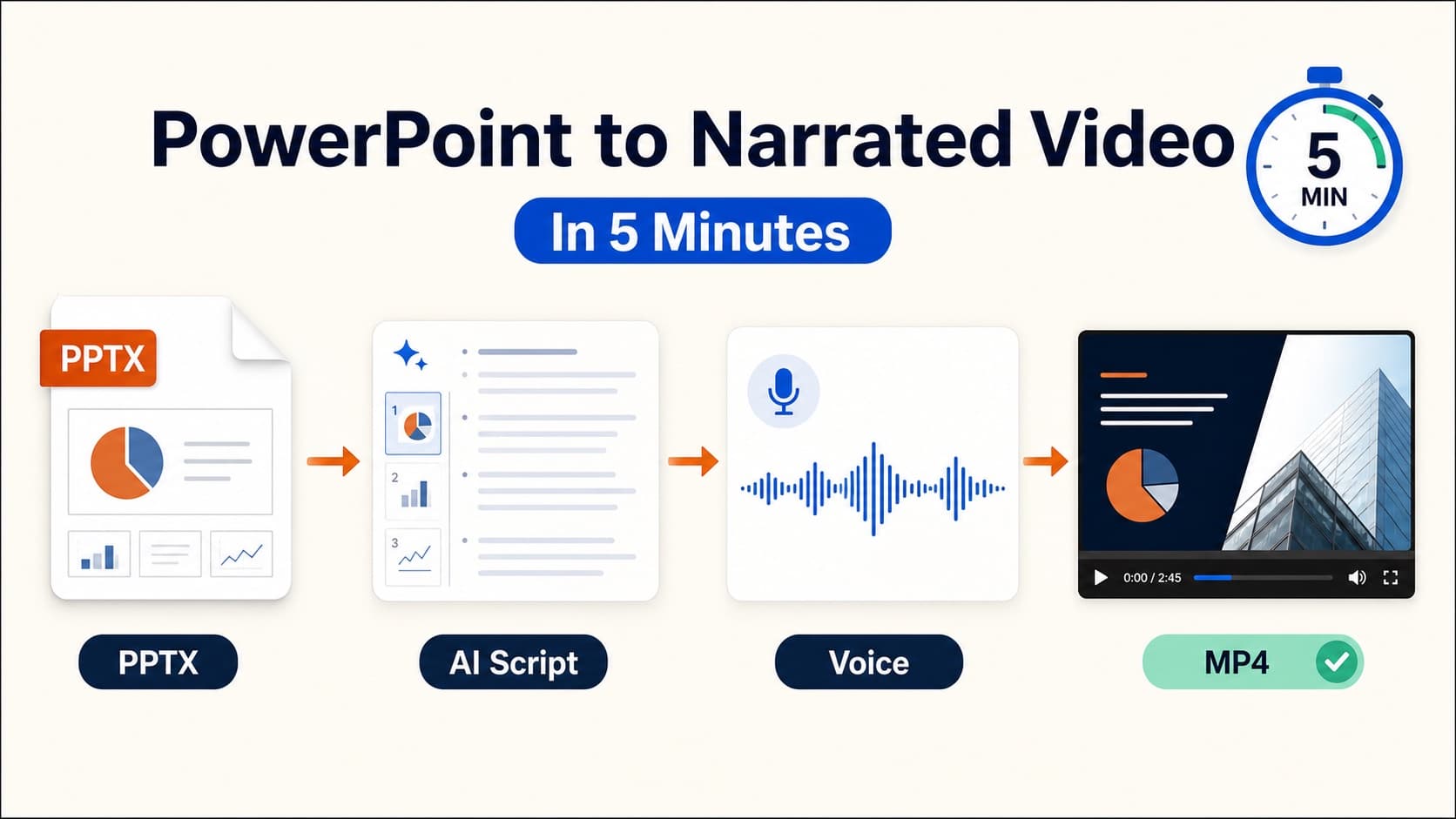
If you need to convert PowerPoint to video, you usually want more than a silent slide show. You want a portable PowerPoint to video file—an MP4 people can open in email, an LMS, Slack, or a customer portal—with clear spoken explanation.
There are three practical ways to turn PowerPoint into video:
- Export from PowerPoint after recording narration
- Screen-record the slide show
- Generate a narrated PowerPoint with AI scripts and voiceover
This guide shows when each method works, then walks through a fast AI workflow for teams that update decks often.
What “convert PowerPoint to video” actually means
People use the phrase for slightly different jobs:
- silent slide timing export
- recorded presentation with the speaker’s own voice
- PowerPoint to MP4 with professional voiceover
- reusable training or sales videos that can be revised later
OralSlides focuses on the last two: start from a finished .pptx, create an editable narration script, generate voice, and export a clean MP4.
Method 1: Export a video from PowerPoint
PowerPoint can create a video after you record the slide show or attach audio.
- Open the finished deck.
- Choose Record or Slide Show → Record Slide Show.
- Narrate each page and advance slides.
- Review timings.
- Choose File → Export → Create a Video.
Best for: one-off talks in your own voice.
Limit: every future edit usually means another recording session.
Method 2: Screen-record the presentation
Present full-screen and capture the display plus microphone. This preserves animations and live cursor movement, but the result is a single take. If slide 9 changes next month, you often re-record the whole section.
Best for: demos that depend on motion or live software.
Limit: hard to maintain at scale.
Method 3: Convert PPT to narrated video with AI
Use this when the deck already explains the story and you need a repeatable PowerPoint to MP4 pipeline.
Step 1: Upload the deck
Upload a stable .pptx. Good candidates:
- sales demos with one idea per slide
- onboarding or SOP decks
- training modules with charts and process steps
- course lessons that currently depend on manual recording
Step 2: Generate a slide-by-slide script
AI should draft spoken narration from the slide content, not just read every bullet. Review for:
- a fast opening on slide 1
- correct chart interpretation
- natural spoken language
- a clear ending CTA
If you already keep talking points in the notes pane, start from better PowerPoint speaker notes.
Step 3: Tighten the script before audio
- keep most slides to 2–4 spoken sentences
- prefer concrete verbs
- add transitions when the topic shifts
- remove repeated framing across nearby slides
Step 4: Choose a voice and export MP4
Match the voice to the job:
- product demos: steady and direct
- internal training: calm and instructional
- executive updates: confident and low-drama
Then export the PowerPoint to video file as 1080p MP4. Optional subtitles can ride along when the script already exists.
Ready to convert a deck? Turn PowerPoint into a narrated MP4 with OralSlides.
Which method should you choose?
| Goal | Best method |
|---|---|
| One live-style talk in your voice | PowerPoint built-in recording |
| Animations or live software must appear | Screen recording |
| Reusable sales, training, or course video | AI narrated export |
| Frequent deck updates | AI narrated export |
| Need portable MP4 for LMS/email | PowerPoint export or AI export |
If the deck changes quarterly, optimize for revision cost—not only the first export.
Common mistakes when turning PowerPoint into video
- exporting before the slide order is final
- reading every bullet instead of explaining the point
- giving every slide the same duration
- choosing a voice that does not match the audience
- shipping without checking the first 15 seconds and the final CTA
Frequently asked questions
How do I convert PowerPoint to video for free?
Use PowerPoint’s built-in recorder, then File → Export → Create a Video. This is the best free option when you are comfortable recording your own voice and do not need frequent revisions.
Can I convert PowerPoint to MP4 with voiceover?
Yes. Record narration in PowerPoint, attach audio files per slide, or generate an AI PowerPoint voice over and export the finished MP4.
How long does it take to turn PowerPoint into video?
A short, stable deck can become a narrated MP4 in one sitting with AI. Manual recording is often longer because corrections require new takes.
Does Google Slides work the same way?
Almost. Download the deck as .pptx, then use the same PowerPoint to video workflow. See Google slides to video.
Should every presentation become a video?
No. Convert decks that need asynchronous delivery: demos, training, lessons, and stakeholder updates. Keep live meetings for discovery, negotiation, and high-touch Q&A.
Related guides
Final takeaway
The fastest way to convert PowerPoint to video is not to invent new footage. Start from a deck that already works, write a spoken script, generate or record the voice once, and export a portable MP4. When the presentation changes, revise the affected slides instead of rebuilding the entire production.
Author

More Posts
How to Convert PowerPoint to MP4 with Voiceover
Convert PowerPoint to MP4 with clear voiceover. Compare PowerPoint export, screen recording, and AI narration so you get a portable video file for LMS, email, or sales follow-up.
How to Convert Google Slides to Video (MP4 Guide)
Google still has no native Google Slides to MP4 export. Compare Workspace recording, screen capture, and the .pptx AI narration route to turn Google Slides into video.
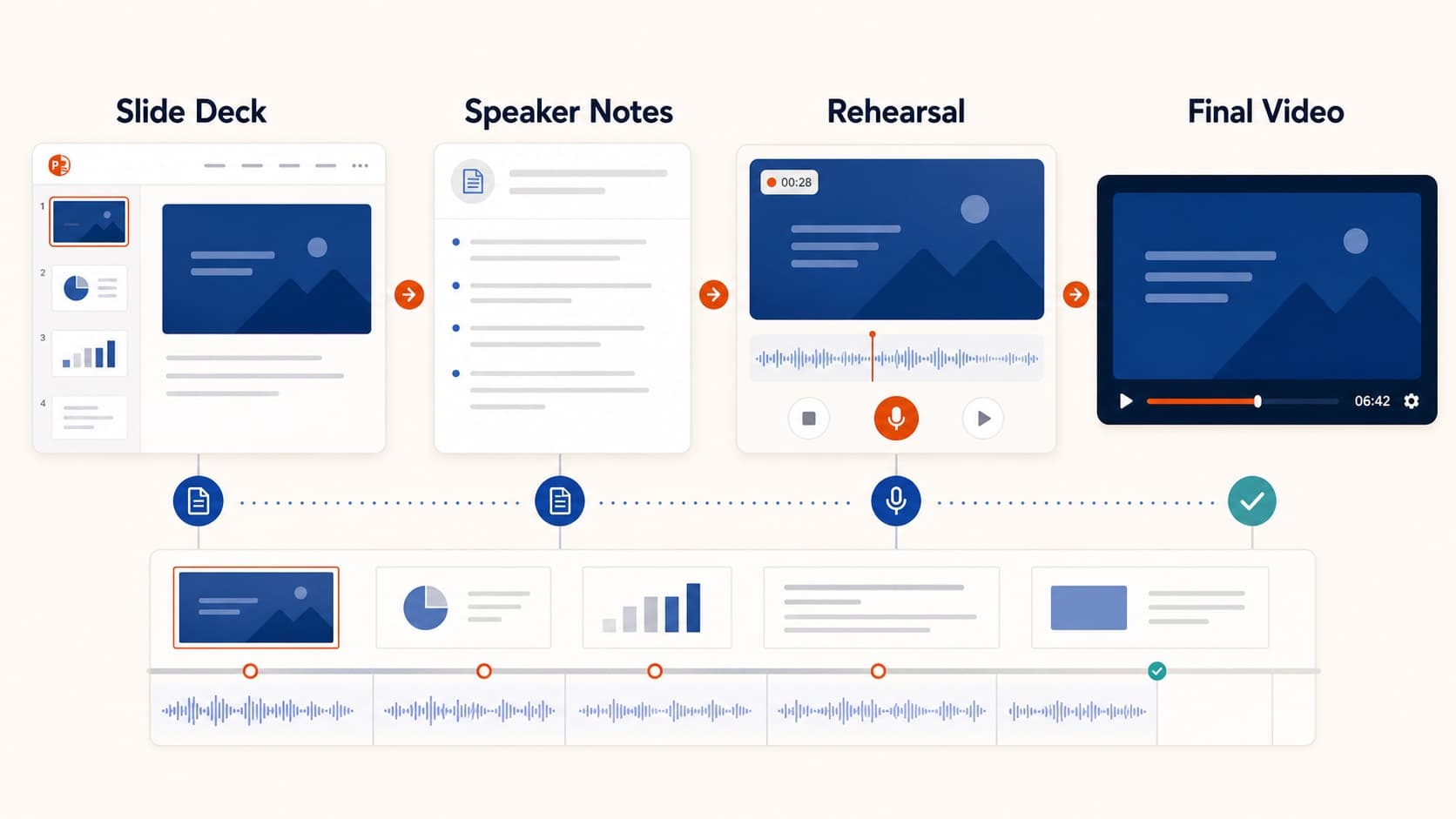
How to Create a Pre-Recorded Presentation Video from Slides
Create a pre-recorded presentation video from your slides without endless takes. Use a script-first workflow to hit conference duration, resolution, and file-size limits.