AI PowerPoint Narrator: How Slide-Aware Narration Works
An AI PowerPoint narrator should do more than read bullets. Learn how slide-aware scripts, editable voiceover, and MP4 export create reusable presentation videos.
An AI PowerPoint narrator is not just text to speech. The useful version reads the deck, drafts a spoken explanation for each slide, lets a human edit the script, generates voiceover, and exports a portable video.
That is the difference between a gimmick and a production system.
What a useful AI PowerPoint narrator must do
- Understand the slide, not only the text box
Charts, screenshots, and layout matter. - Draft spoken language
Not a bullet inventory. - Keep the script editable
Approval happens in text. - Generate voice per slide
So one page can be fixed without redoing the deck. - Export MP4
Distribution needs a file, not another presentation format.
OralSlides is built around that loop. Start at the AI PowerPoint narrator page.
Where it beats manual recording
- recurring training decks
- sales follow-up videos
- onboarding sequences
- course modules that change every term
- multilingual variants of the same source deck
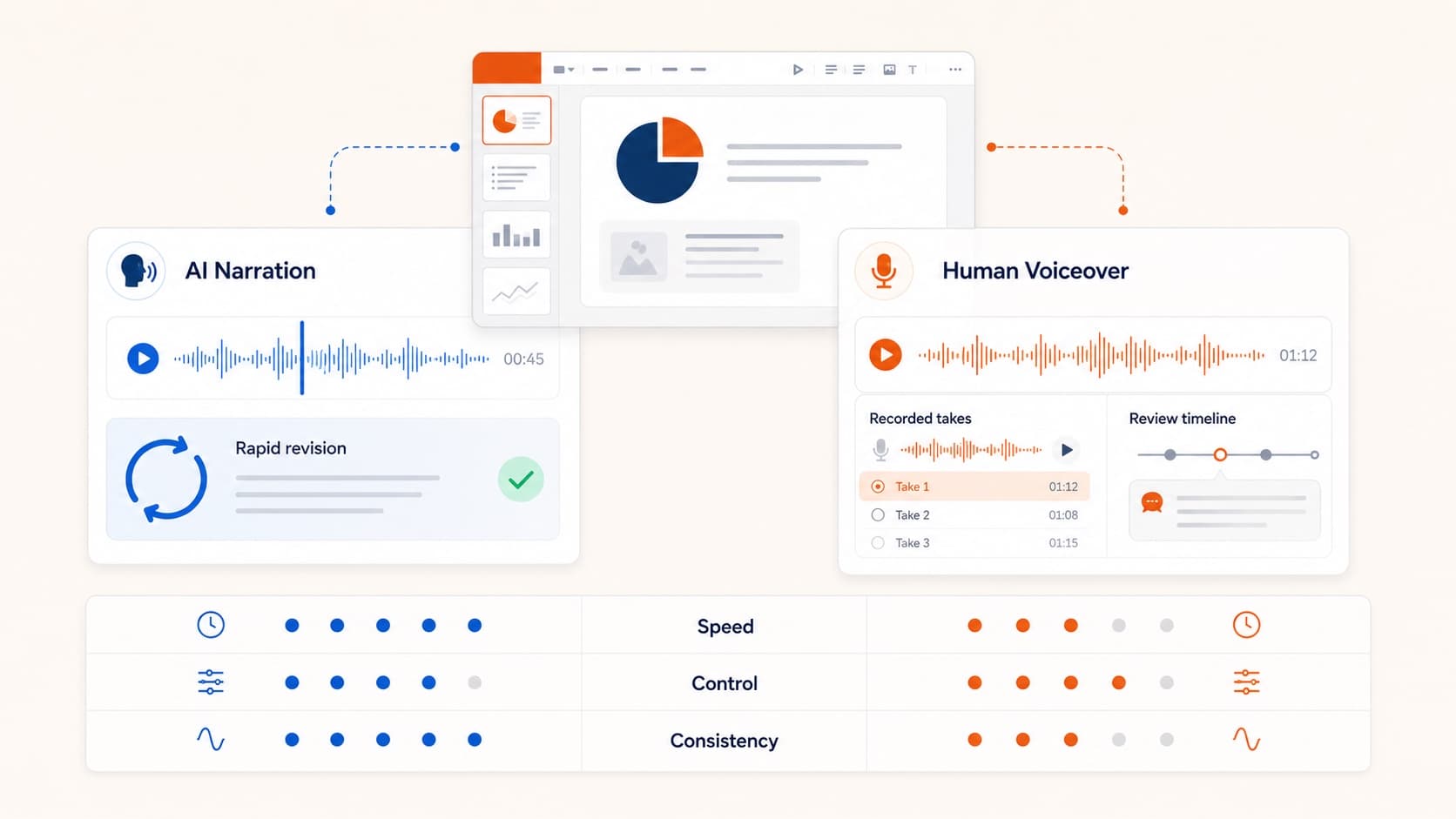
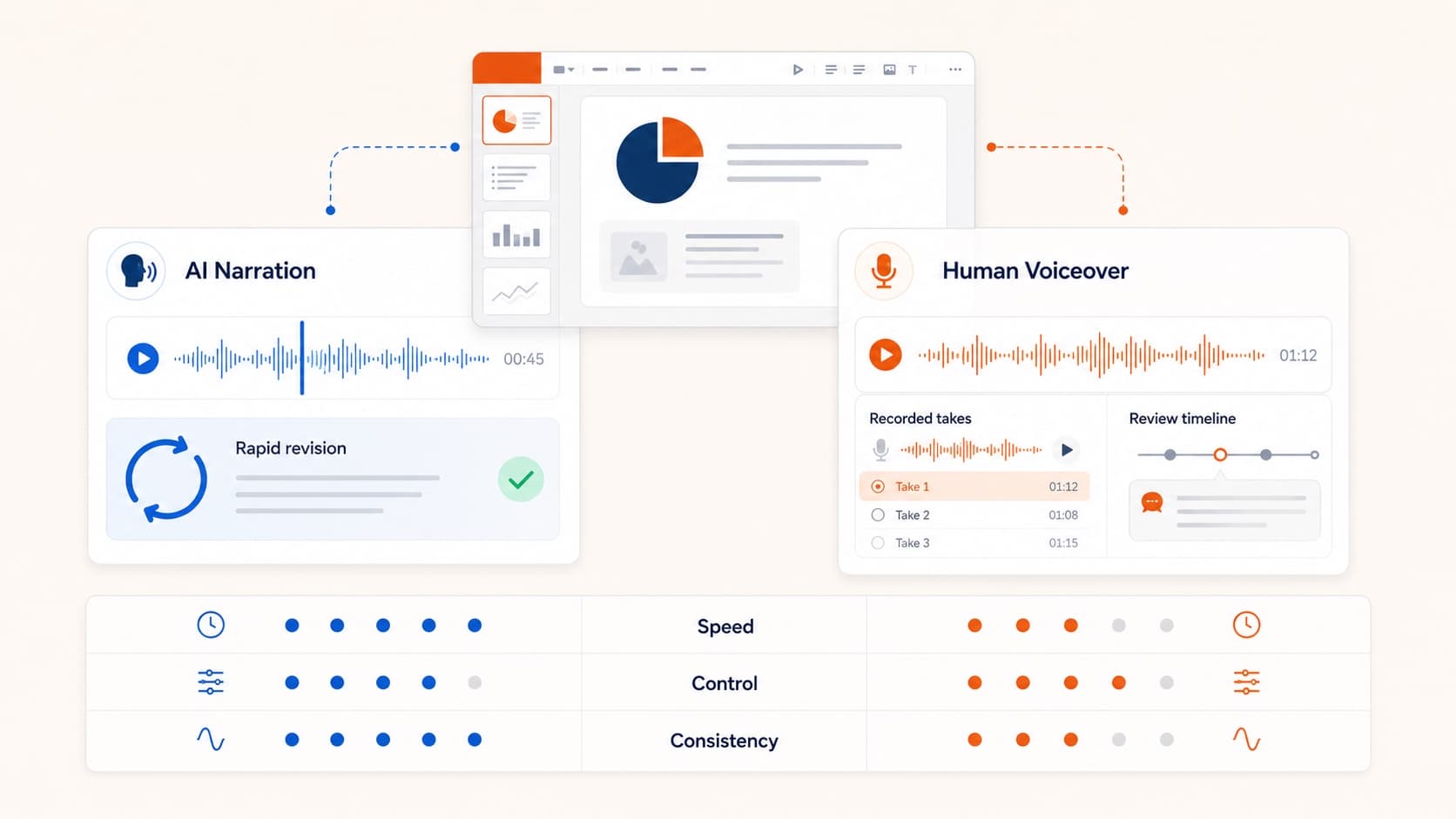
If revision speed matters, AI narration usually wins. If identity is the message, human voice still matters. See AI voice over for PowerPoint.
A practical narrator workflow
- Upload a stable
.pptx. - Review the generated script for accuracy and pacing.
- Tighten openings, chart explanations, and transitions.
- Choose a voice that matches the audience.
- Export MP4, with captions when viewers may watch with sound off.
For the broader conversion path, use convert PowerPoint to video and PowerPoint to MP4.
Quality bar for AI-generated narration
Reject scripts that:
- restate visible labels without interpretation
- invent claims not supported by the slide
- sound like marketing copy instead of explanation
- ignore the next-slide transition
Approve scripts that:
- state the point of the page quickly
- explain the visual
- prepare the next idea
- fit a realistic word budget
Related guides
- How to narrate a PowerPoint
- Text to speech PowerPoint
- PowerPoint speaker notes
- Add captions to presentation video
Final takeaway
Choose an AI PowerPoint narrator for production leverage, not novelty. The value is editable scripts, slide-level regeneration, and a clean path from deck to MP4.
More Posts
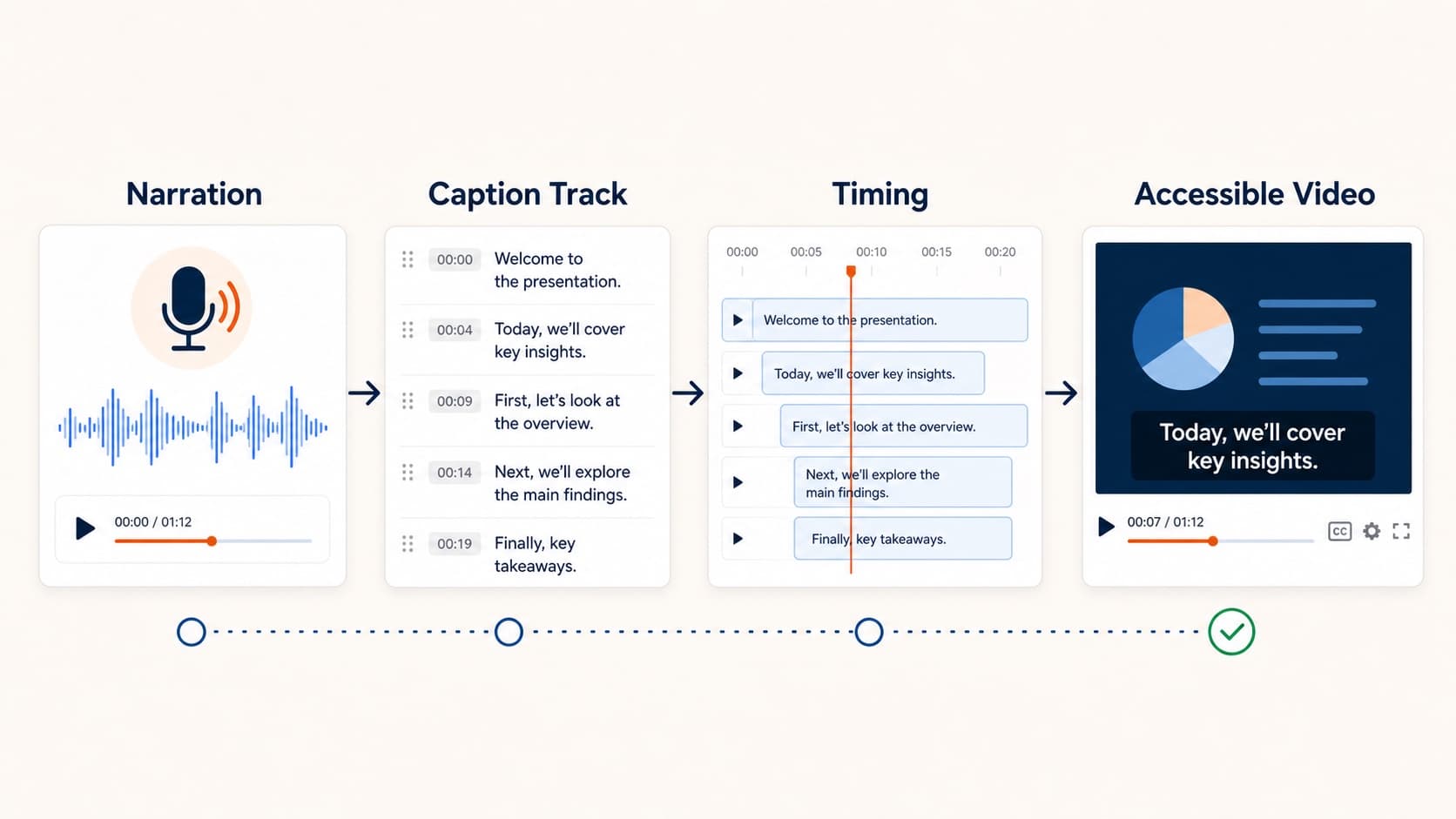
How to Add Captions to a Presentation Video Automatically
Learn how to add captions to a presentation video without a separate transcription pass. Why sound-off viewers bounce, and how script-based narration makes subtitles automatic.

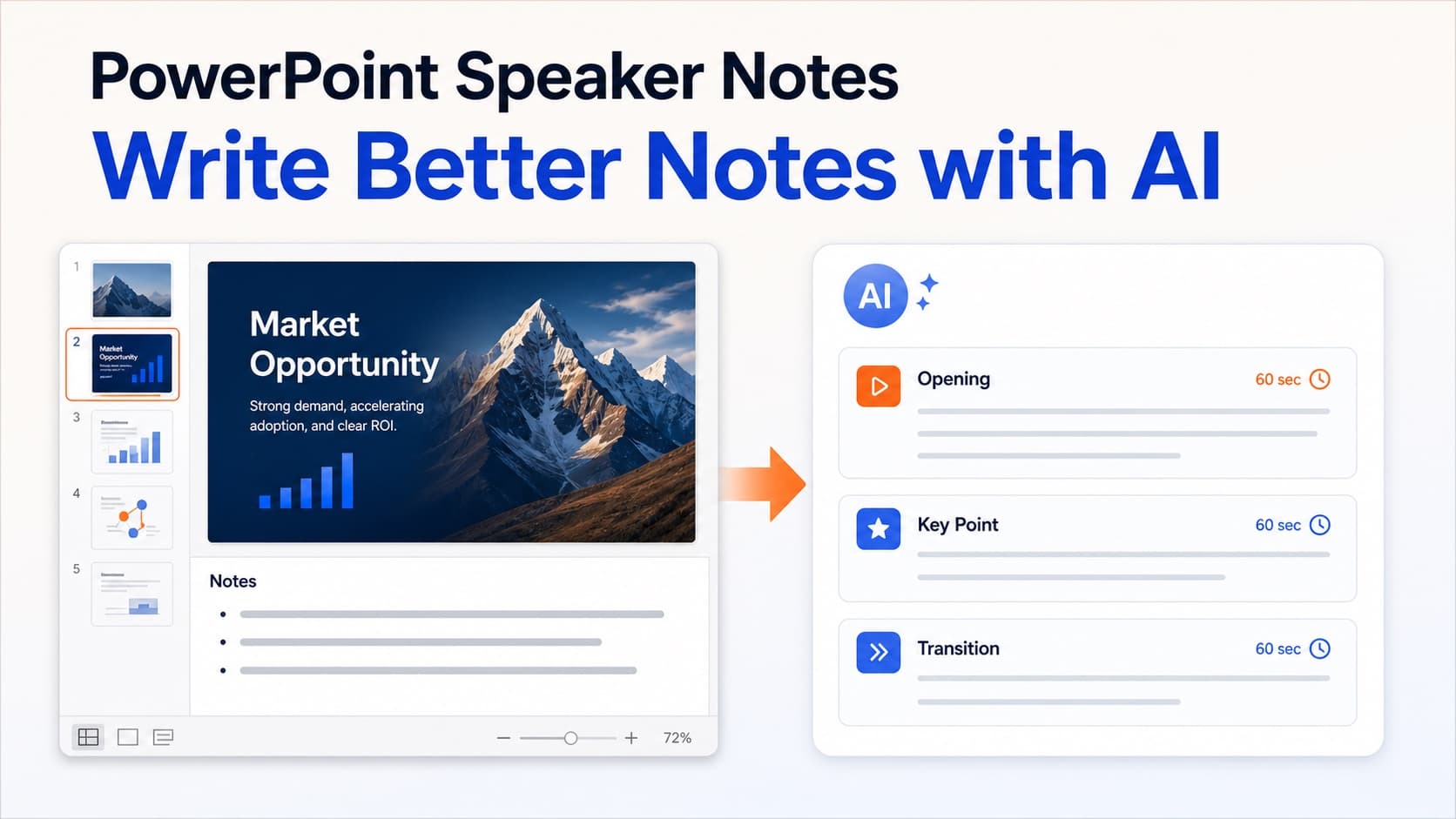
How to Write Better PowerPoint Speaker Notes with AI
Learn how to add, write, format, and improve PowerPoint speaker notes—and use AI to turn slide content into a clear narration script.
How to Use Text to Speech in PowerPoint the Right Way
Use text to speech in PowerPoint without robotic slide reading. Turn speaker notes or AI scripts into clear narration, then export a reusable narrated video.