How to Use Text to Speech in PowerPoint the Right Way
Use text to speech in PowerPoint without robotic slide reading. Turn speaker notes or AI scripts into clear narration, then export a reusable narrated video.
Text to speech PowerPoint workflows fail when teams paste bullet points into a generic TTS box and hope for a polished video. Spoken narration is not slide text with a voice attached. It needs interpretation, pacing, and transitions.
This guide shows how to use text to speech for PowerPoint decks without producing a robotic read-along.
Why raw TTS sounds bad on slides
Slide text is written to be scanned. Speech is heard once. If the engine reads every label, the result is:
- repetitive
- too dense
- missing the point of charts and diagrams
- hard to revise later if timing is baked into one long take
Good TTS starts from a spoken script, not from the slide canvas alone.
A better text to speech PowerPoint workflow
1. Decide whether you need notes or a finished script
- Live presenters need short prompts.
- Recorded videos need complete spoken sentences and a word budget.
Use PowerPoint speaker notes when you are still drafting. Convert those notes into a recording script before generating audio.
2. Write for the ear
- 2–4 sentences per slide for most business decks
- concrete verbs
- one idea per page
- transitions when the topic changes
3. Generate speech only after review
Whether you use PowerPoint-compatible audio files or an AI narrator, approve terminology, claims, and pronunciation first. Audio should be a render step, not a drafting step.
4. Export a portable video
If the destination is email, LMS, or sales follow-up, finish with a PowerPoint to MP4 export rather than leaving the narration locked inside a PPTX.
Where OralSlides fits
OralSlides is built for deck-aware text-to-speech:
- upload the
.pptx - generate a slide-by-slide script from text and visuals
- edit the wording
- choose a voice
- export narrated MP4
That is different from pasting bullets into a generic TTS widget. The script stays editable, and one slide can be regenerated without redoing the whole deck.
Try the AI PowerPoint narrator when you want text-to-speech that starts from the actual slides.
When not to use TTS
- the speaker’s identity is the product
- the talk depends on live emotional performance
- the audience expects a founder or executive voice
In those cases, record human narration. For the decision framework, see AI voice over for PowerPoint.
Related guides
Final takeaway
The right way to do text to speech PowerPoint is script-first: write what should be said, generate the voice, then export a video your audience can actually finish.
Author

More Posts
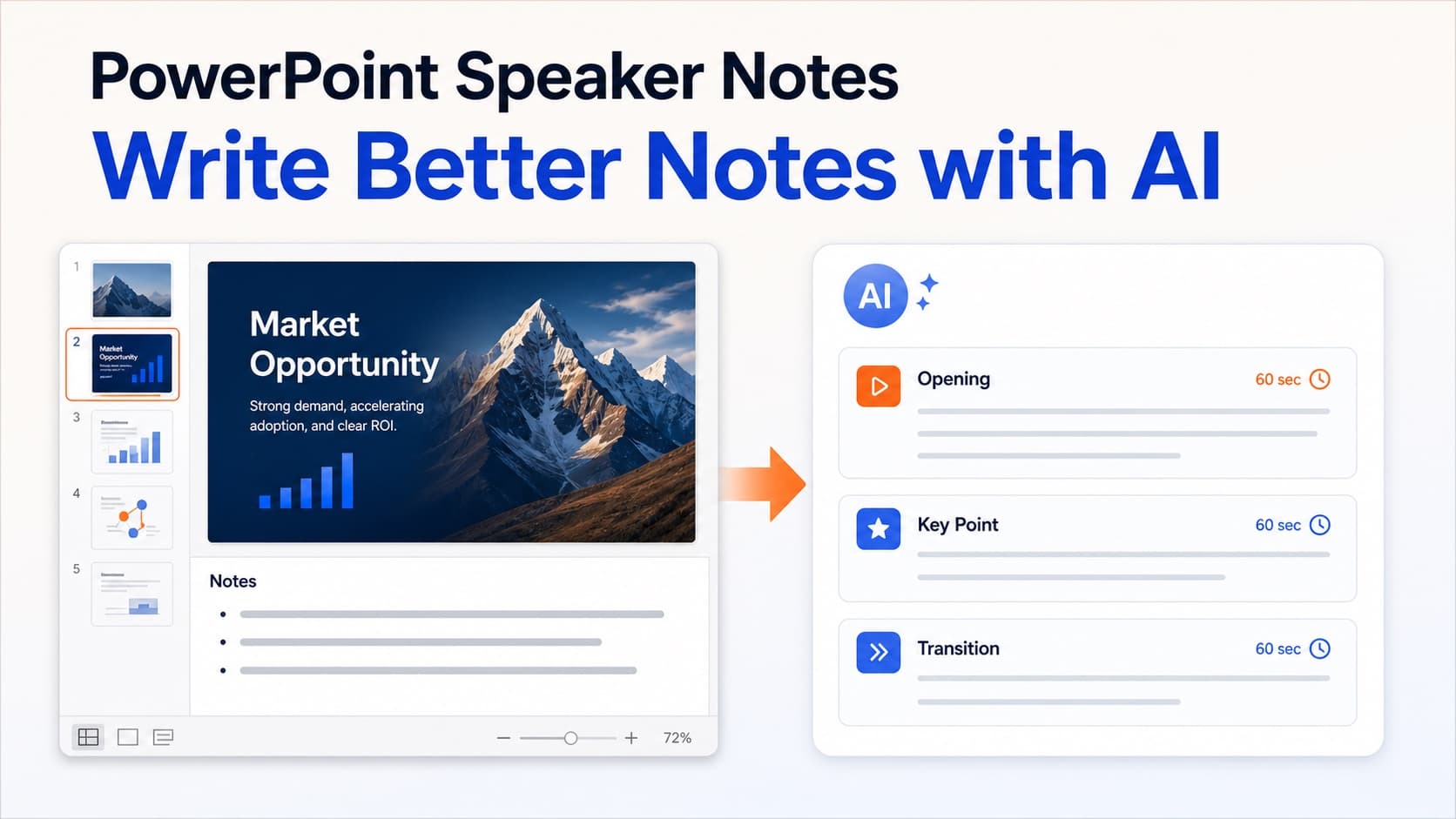
How to Write Better PowerPoint Speaker Notes with AI
Learn how to add, write, format, and improve PowerPoint speaker notes—and use AI to turn slide content into a clear narration script.
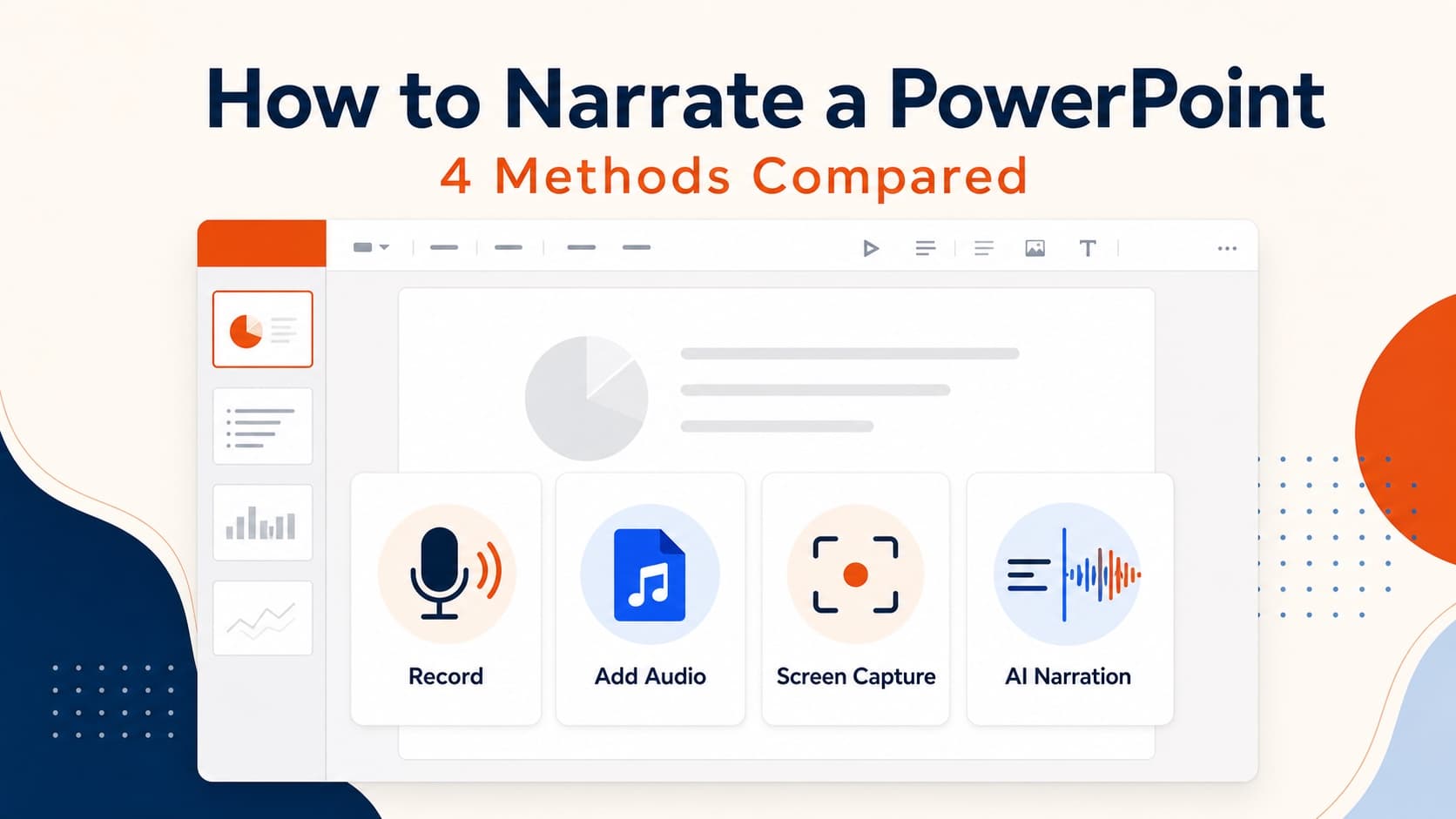
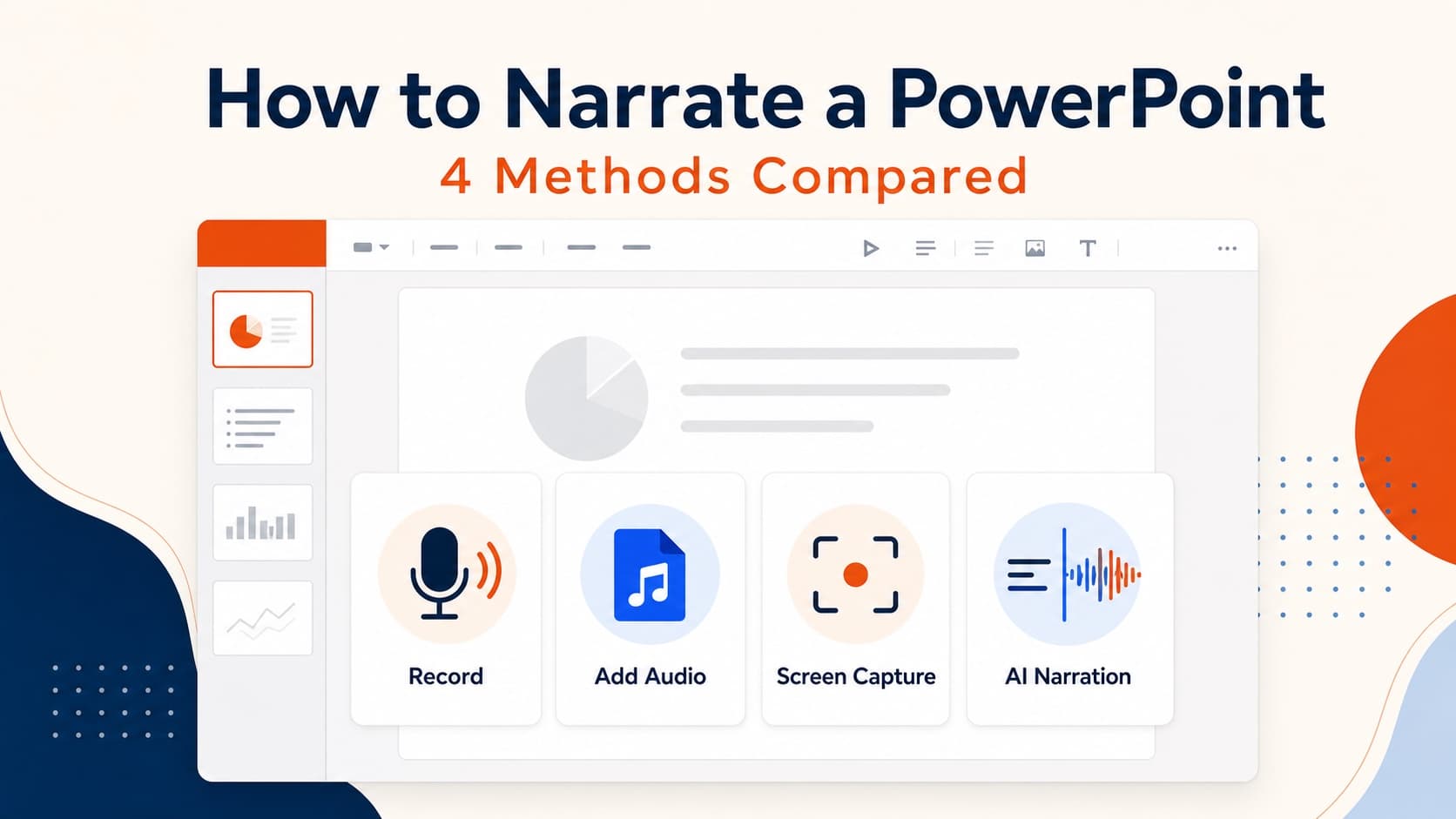
How to Narrate a PowerPoint: 4 Methods Compared
Learn how to narrate a PowerPoint using built-in recording, slide audio, screen capture, or AI voiceover—and choose the best method for your deck.
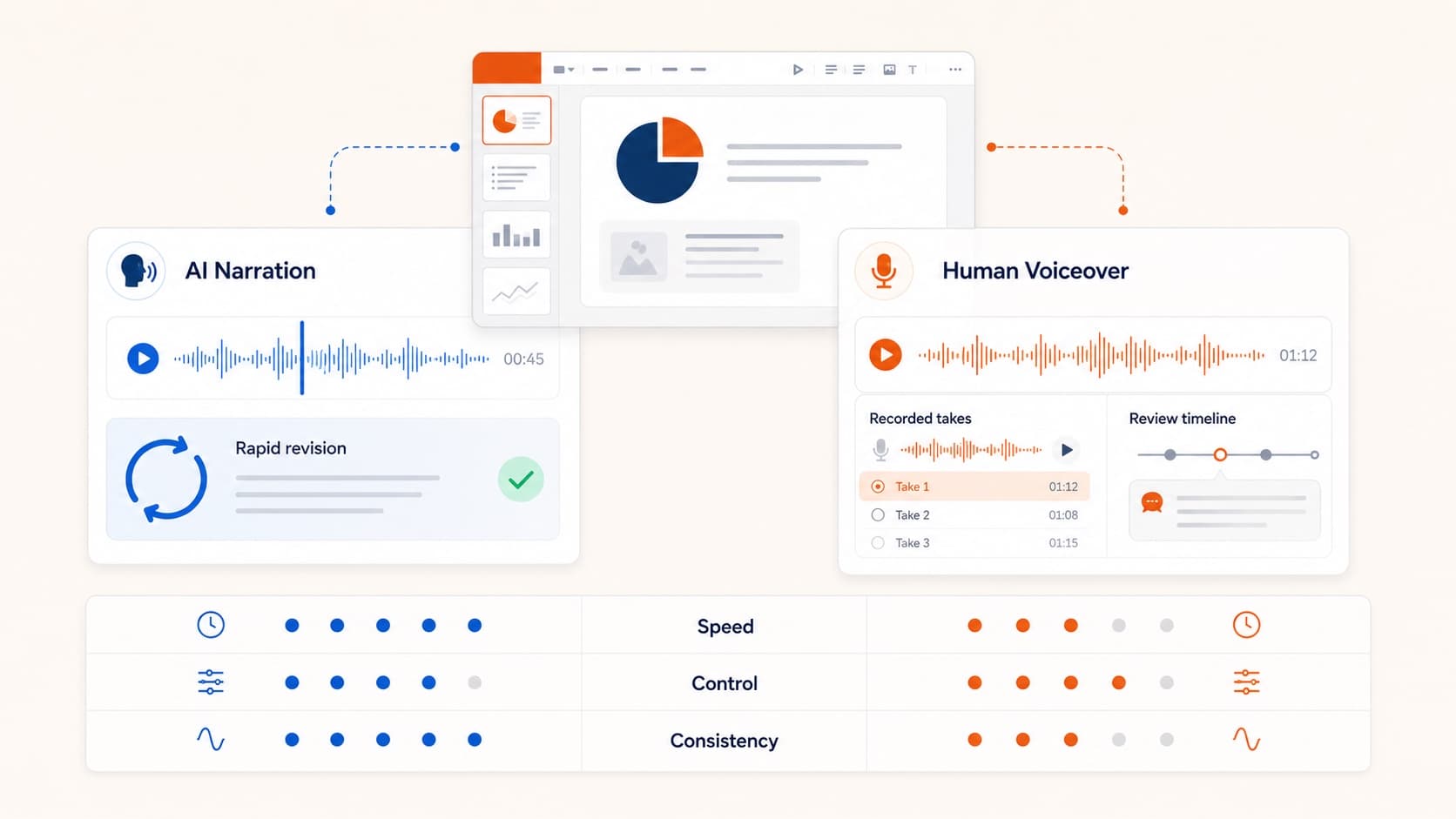
AI PowerPoint Narrator: How Slide-Aware Narration Works
An AI PowerPoint narrator should do more than read bullets. Learn how slide-aware scripts, editable voiceover, and MP4 export create reusable presentation videos.