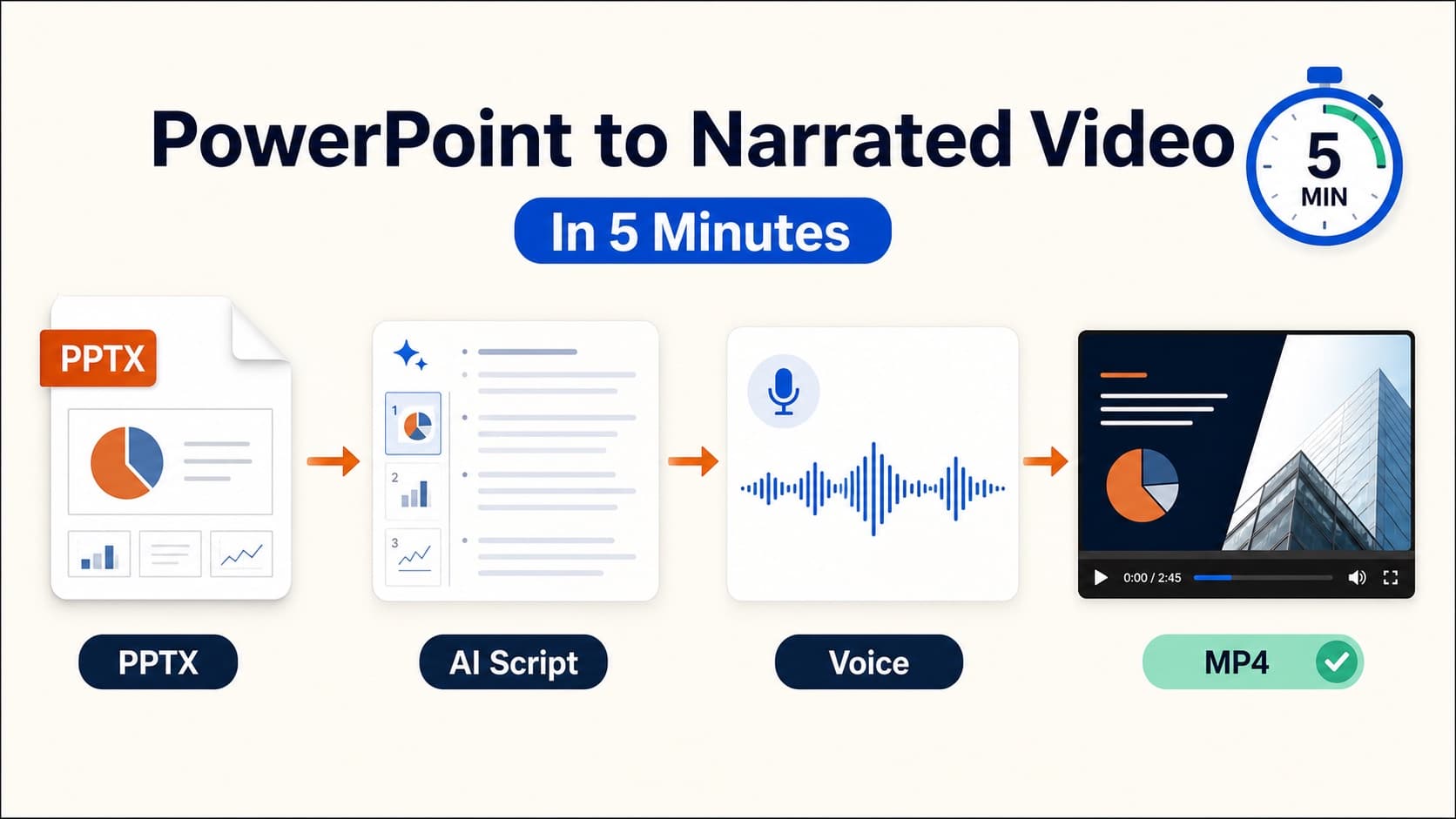
How to Convert PowerPoint to MP4 with Voiceover
Convert PowerPoint to MP4 with clear voiceover. Compare PowerPoint export, screen recording, and AI narration so you get a portable video file for LMS, email, or sales follow-up.
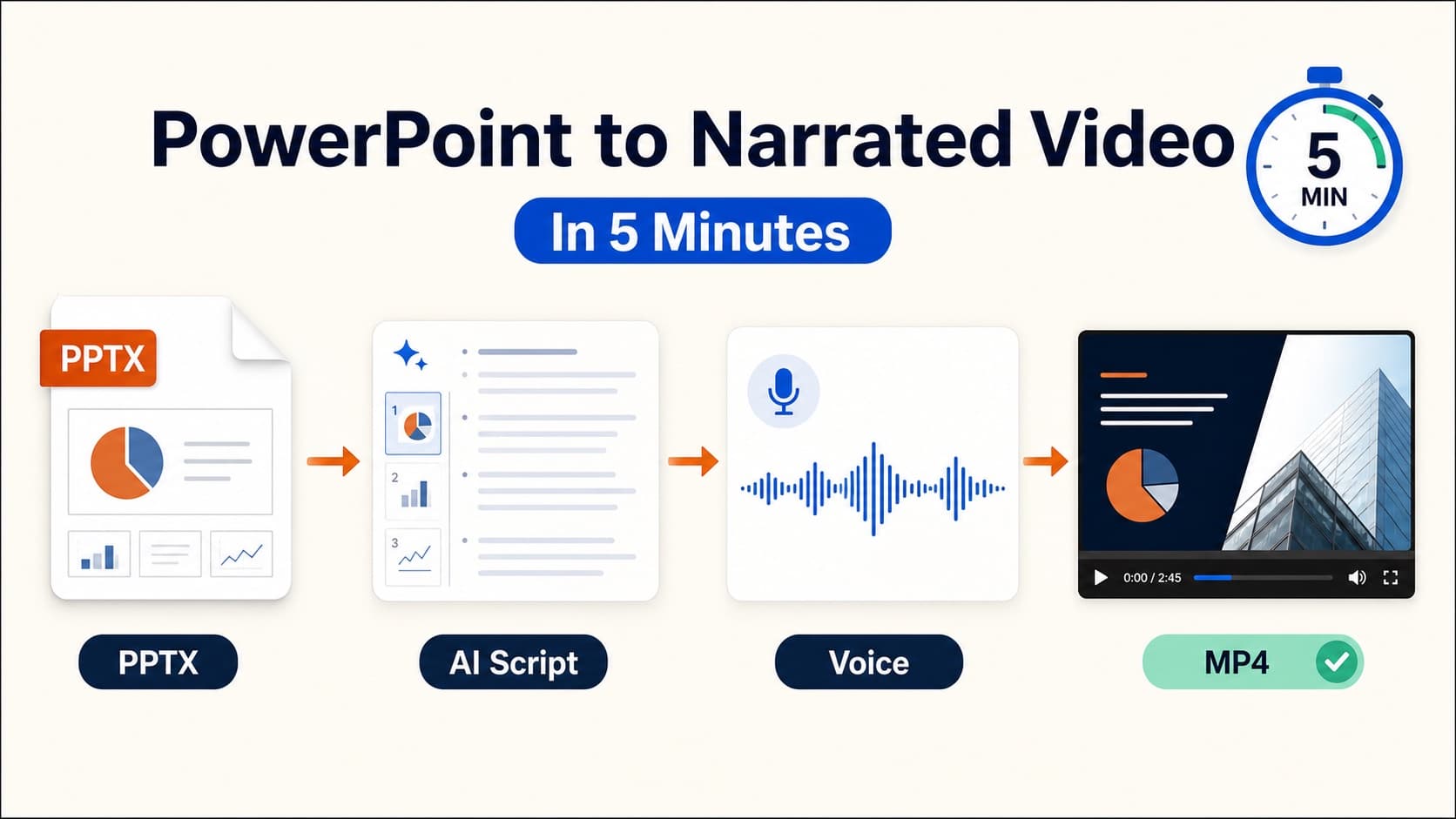
If your goal is a portable file, PowerPoint to MP4 is usually the right framing. An MP4 can be uploaded to an LMS, attached in email, dropped into Slack, or embedded on a landing page without forcing viewers into a presentation app.
This guide shows the three practical ways to convert a deck into MP4 and when each one is worth using.
What you get from a PowerPoint to MP4 export
A good export should deliver:
- a portable video file
- slide order that matches the deck
- optional voiceover
- optional captions
- a resolution suitable for business distribution (usually 1080p)
Silent timed exports can be enough for kiosk loops. Most business use cases need spoken explanation.
Method 1: Export MP4 from PowerPoint
- Finish the deck.
- Record the slide show or attach audio.
- Choose File → Export → Create a Video.
- Select resolution and timings.
- Export the MP4.
Best for: one-off talks in your own voice.
Watch out for: large files, re-recording cost, and inconsistent room tone when you repair later slides.
Method 2: Screen-record the presentation
Present full-screen and capture the display plus microphone. This preserves animations and live cursor movement.
Best for: demos that depend on motion.
Watch out for: monolithic takes that are hard to update.
Method 3: AI narrated PowerPoint to MP4
Use this when the deck already contains the story and you need a repeatable pipeline.
- Upload the
.pptx. - Review the slide-by-slide script.
- Choose a voice.
- Export a 1080p MP4, with captions if needed.
This is the same core flow as convert PowerPoint to video, optimized for teams that care about file portability more than live performance.
Need the MP4 today? Generate a narrated PowerPoint to MP4 with OralSlides.
Quality checklist before you ship
- open the file on another device
- confirm slide 1 sets context in the first 10–15 seconds
- check charts are explained, not just labeled
- verify duration against the real use case
- confirm captions if the video may be watched with sound off
Common mistakes
- exporting before the slide order is final
- reading every bullet
- ignoring file size limits for LMS or conference portals
- using a voice that does not match the audience
- shipping without a clear ending CTA
Frequently asked questions
Can PowerPoint export MP4 for free?
Yes, current desktop PowerPoint can export video after recording or attaching audio. The free path still depends on you producing the narration.
How do I convert PowerPoint to MP4 with voiceover automatically?
Generate a script from the deck, approve the wording, then create voiceover and export MP4. AI narration is fastest when the deck will be revised later.
Is MP4 better than sharing the PPTX?
Usually yes for asynchronous delivery. Viewers do not need PowerPoint, slide transitions cannot be skipped accidentally, and the message is locked to the approved narration.
Related guides
- Convert PowerPoint to video
- How to narrate a PowerPoint
- Add captions to presentation video
- Google Slides to video
Final takeaway
PowerPoint to MP4 is a distribution decision. Choose the export path based on whether you need your own voice, motion fidelity, or a regenerable narrated file your team can update next quarter.
Author

More Posts
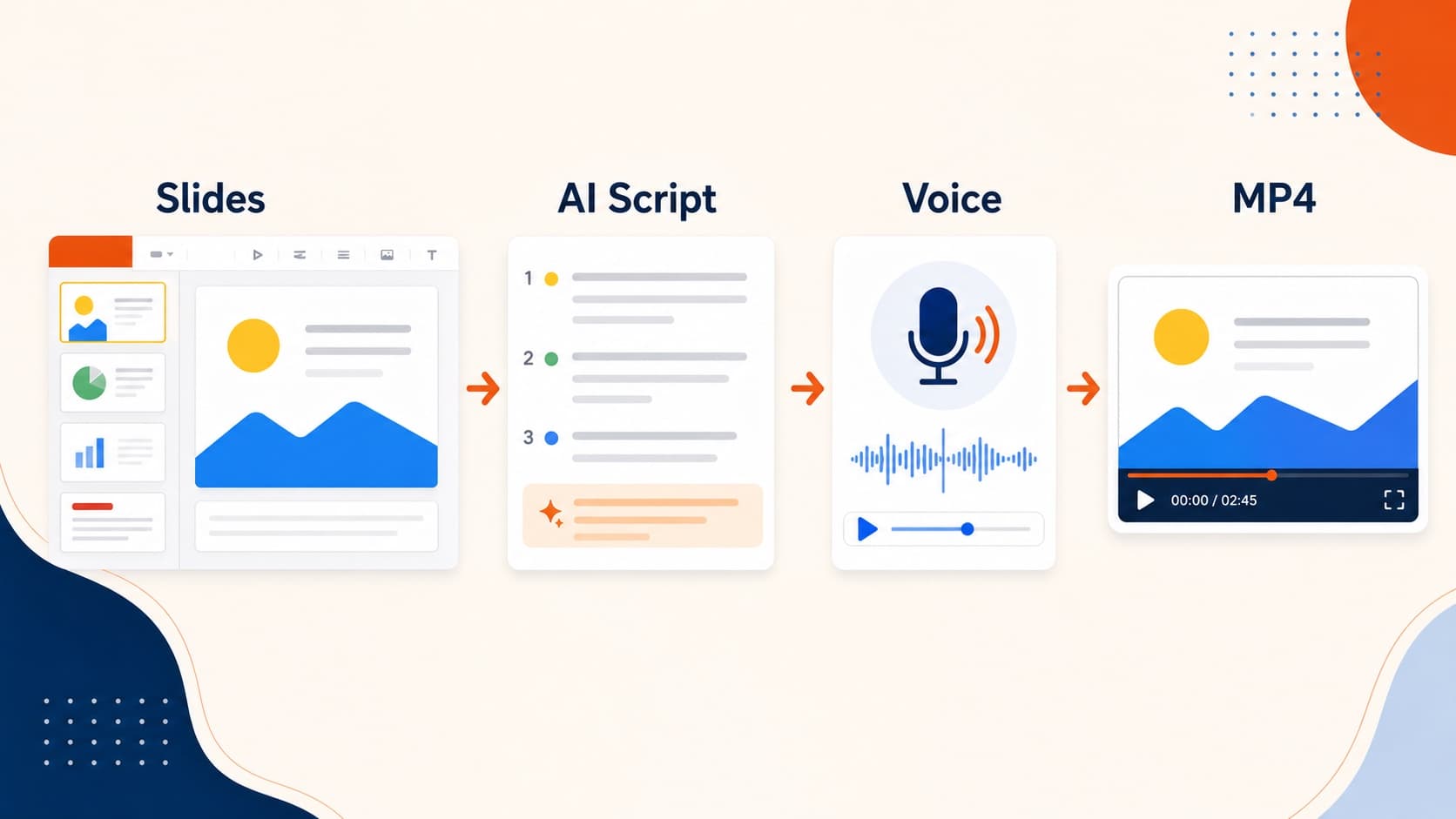
How to Convert Google Slides to Video (MP4 Guide)
Google still has no native Google Slides to MP4 export. Compare Workspace recording, screen capture, and the .pptx AI narration route to turn Google Slides into video.
How to Convert PowerPoint to Video with Narration
Learn how to convert PowerPoint to video as a narrated MP4. Compare PowerPoint export, screen recording, and AI voiceover—then export a reusable PPT to video workflow.
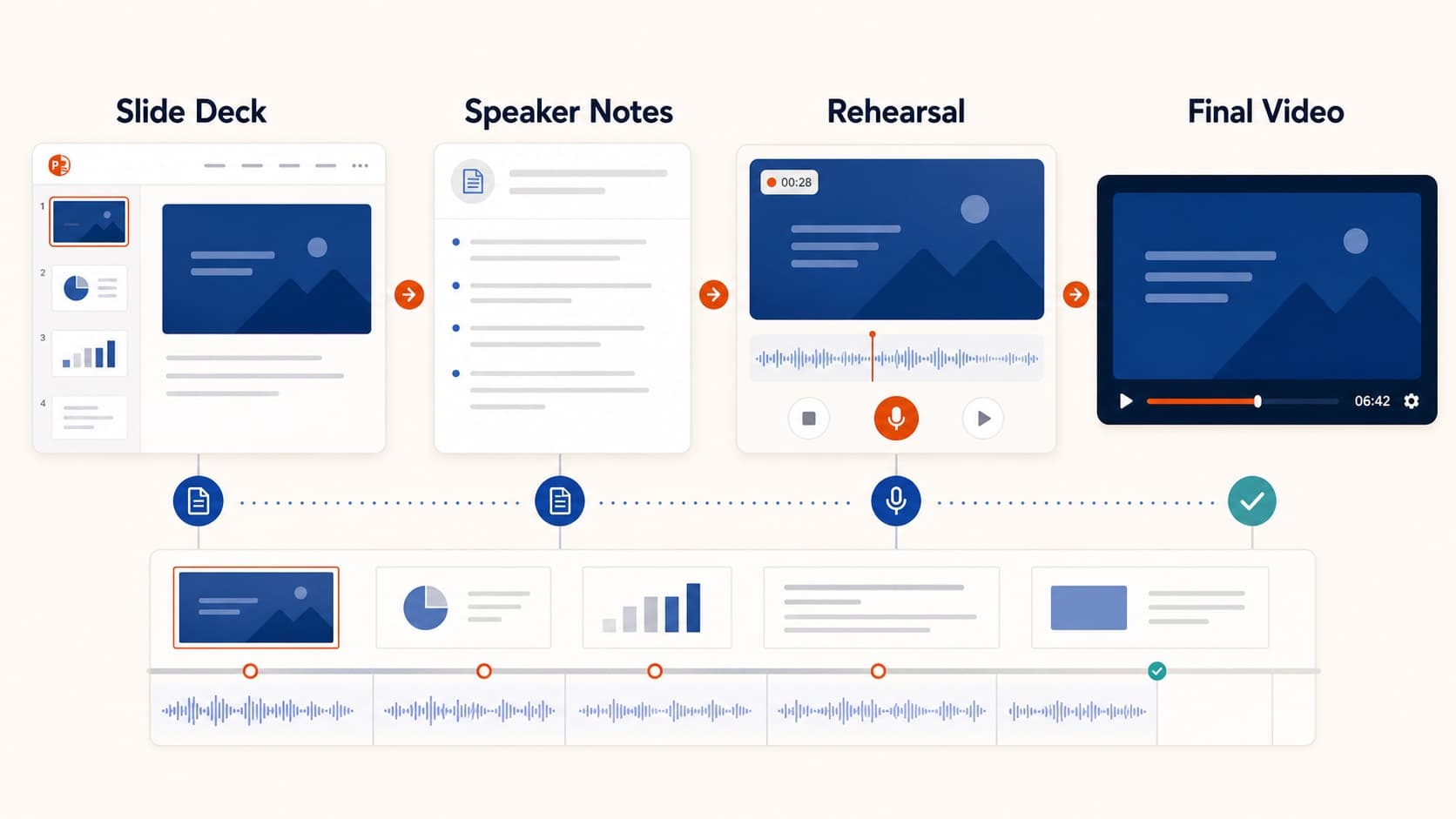
How to Create a Pre-Recorded Presentation Video from Slides
Create a pre-recorded presentation video from your slides without endless takes. Use a script-first workflow to hit conference duration, resolution, and file-size limits.