How to Pre-Record a Conference Talk Without Fighting PowerPoint
More conferences require pre-recorded talk videos with strict length and format rules. A workflow for producing a clean, correctly-timed MP4 from your slides — without ten takes.
Since the pandemic normalized hybrid conferences, "upload your pre-recorded talk as an MP4" has become a standard line in speaker instructions — for academic conferences, industry summits, and internal tech events alike. The instructions usually come with hard constraints: a strict duration cap, a required resolution, a file size limit, and a deadline.
For most speakers this lands as a surprisingly unpleasant task. Presenting live is a skill you have; producing a video file that passes a submission checker is a different job entirely.
Why the obvious approach hurts
The default path is PowerPoint's built-in recorder: narrate each slide, then File → Export → Create a Video. It works, but three problems show up reliably:
- The timing problem. Your talk must land under, say, 12 minutes. Live, you'd adjust on the fly. Recorded, you find out you're at 13:40 only after finishing the take — and there's no way to "talk faster" in post. Speakers routinely do full re-records just to hit the cap.
- The file problem. Narrated PowerPoint exports are notorious for enormous output files; long decks with audio can produce multi-gigabyte videos that blow past upload limits and take hours to render on a laptop.
- The take problem. A stumble on slide 18 of 24 means re-recording that slide and hoping the room tone and energy match. Usually they don't, and you can hear the seam.
Add the ambient constraints — quiet room, decent microphone, no notifications for 15 straight minutes — and a "simple upload" costs an evening or two.
The script-first alternative
The insight that fixes the timing problem: duration is a property of the script, not the take. Spoken English runs around 140–160 words per minute. A 12-minute cap is a ~1,700–1,900 word budget. If you can see the script, you can hit the cap before recording anything.
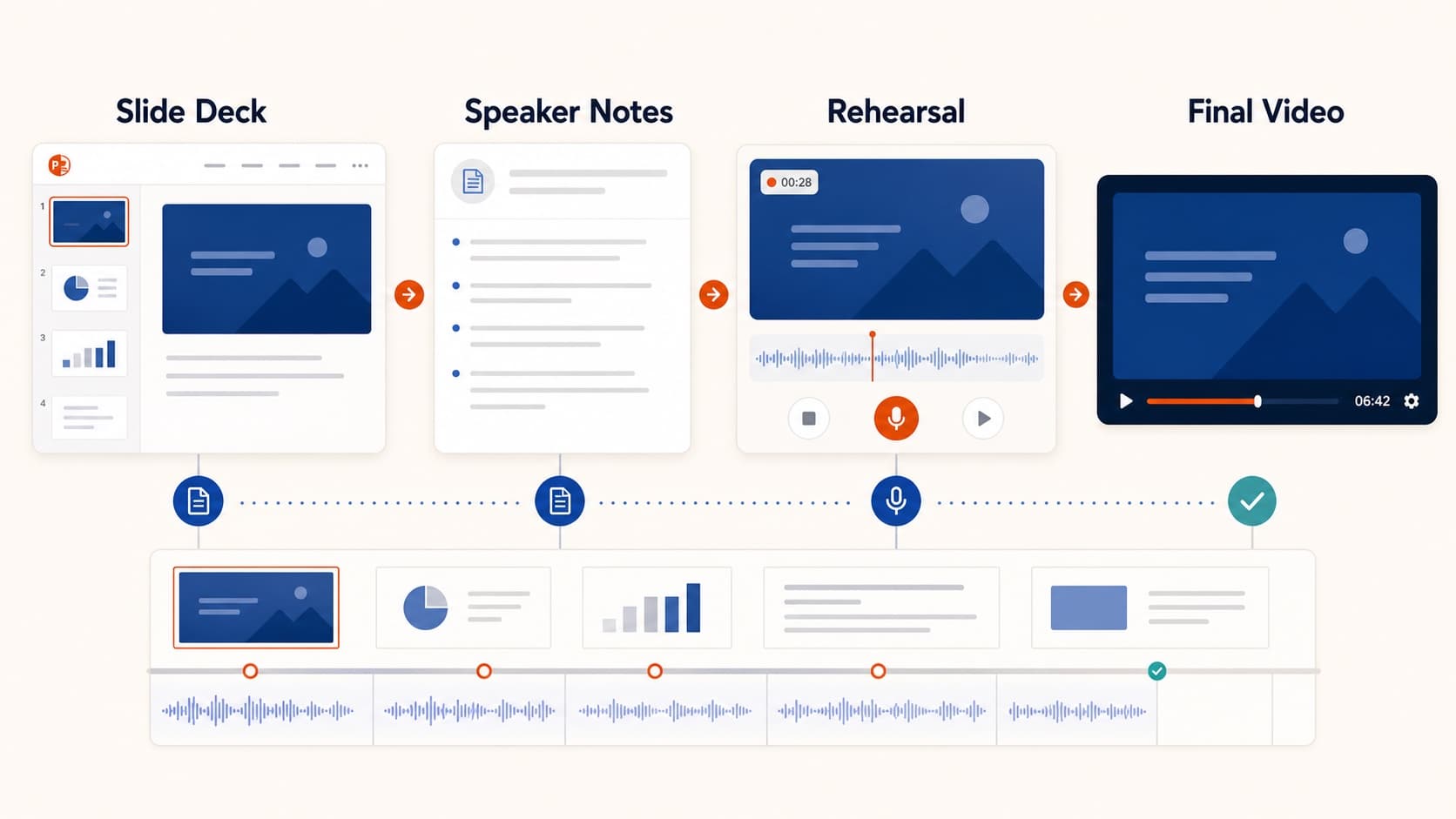
That's the workflow OralSlides was built around:
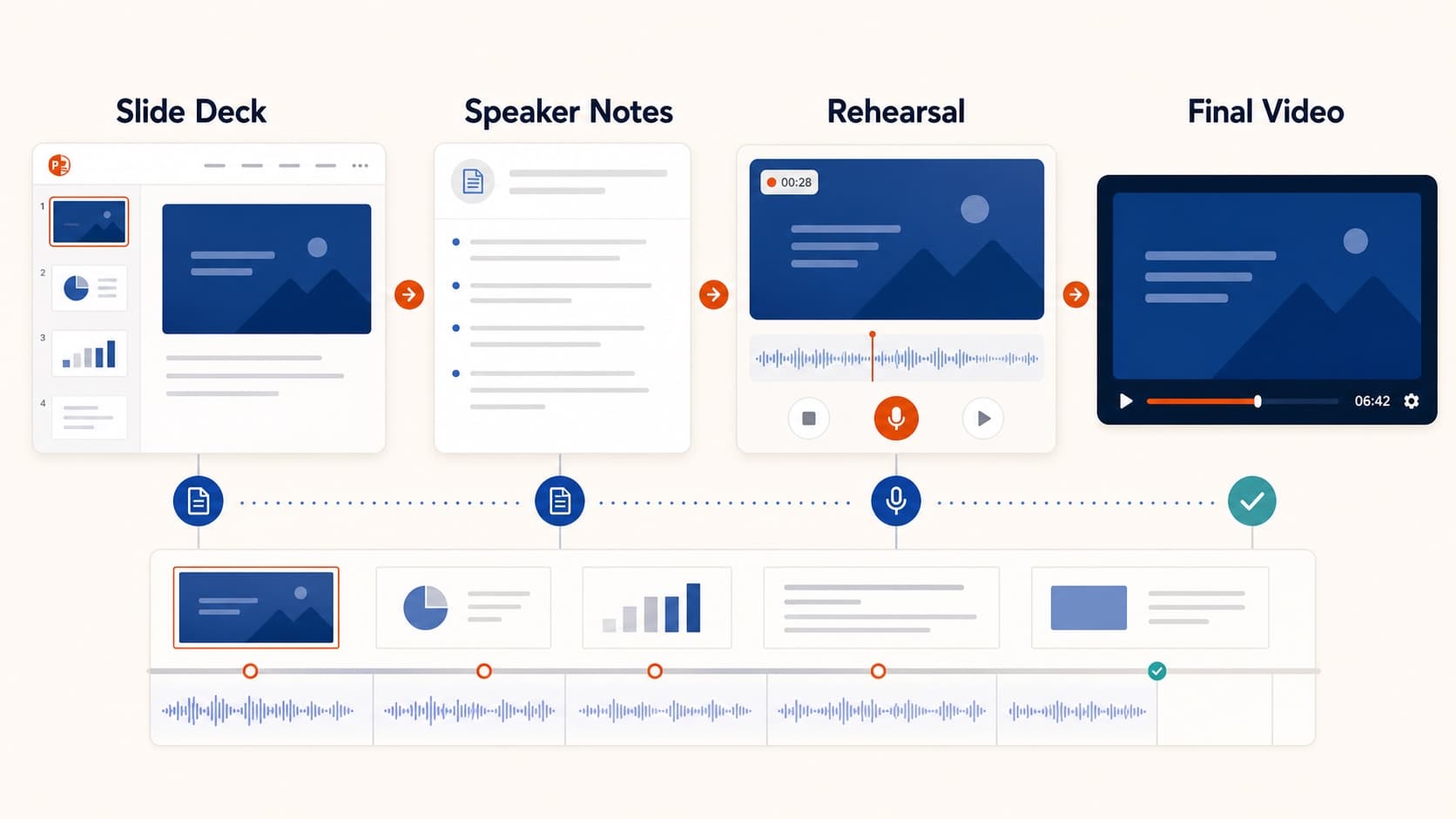
- Upload the final
.pptx. The model drafts narration for each slide from its actual content. - Edit the script down to your word budget. This is where the talk gets good. You'll find repeated framing, slides that need one sentence instead of four, and transitions worth adding. The script editing guide has a concrete checklist.
- Pick a voice, generate, and listen through. Fix any slide that reads wrong and regenerate just that segment — no seams, no matching room tone.
- Export a 1080p MP4. Predictable resolution, predictable file size, encoded for exactly this purpose. Subtitles can be included at export, which some conferences now require for accessibility.
The total time is dominated by step 2 — editing text — which is the step that actually improves the talk.
"But it should be my voice"
Sometimes it should. A keynote is a performance; if the speaker's delivery is part of the value, record it live and accept the production cost. The AI narration vs human voiceover guide draws that line in more detail.
But be honest about the category. A methods talk in a parallel session, a sponsored technical overview, a lightning talk in track C — the audience is there for the content, watches at 1.25×, and cares that the explanation is clear and inside the time cap. For that category, a clean synthetic narration of a well-edited script beats a tired 11 PM fourth take of your own voice.
There's also a real accessibility case: for speakers presenting in their second or third language, generated narration removes the accent-anxiety tax entirely and lets the work speak clearly.
A realistic checklist before you submit
- Read the speaker instructions twice: duration cap, resolution, file size, subtitle requirement, naming convention
- Freeze the deck before generating narration — script edits are cheap, but slide reshuffles after audio exist mean re-reviewing the flow
- Watch the export end-to-end once at full speed; check slide 1 (context set quickly?) and the final slide (clear close?)
- Check the duration and file size against the limits before the submission portal does
The complete pipeline from upload to export is covered in the PPT to video workflow. If your deck is done, the video is about a sitting away — which, the night before a submission deadline, is the number that matters.
More Posts
Why Async Product Demos Beat Live Calls for Most Sales Cycles
A pragmatic argument — and a workflow — for replacing the standard 30-minute demo call with a 6-minute narrated MP4 the prospect can watch on their schedule.

How to Turn Google Slides into a Narrated Video (2026 Guide)
Google Slides still has no native MP4 export. Here are the three real options — the built-in Workspace recorder, screen capture, and the .pptx-to-AI-narration route — with the limits of each.

5 Ways Sales Teams Use Slide-to-Video Workflows to Close Deals
How sales teams turn existing decks into narrated videos for demos, proposals, onboarding, and async stakeholder review.

Newsletter
Join the community
Subscribe to our newsletter for the latest news and updates