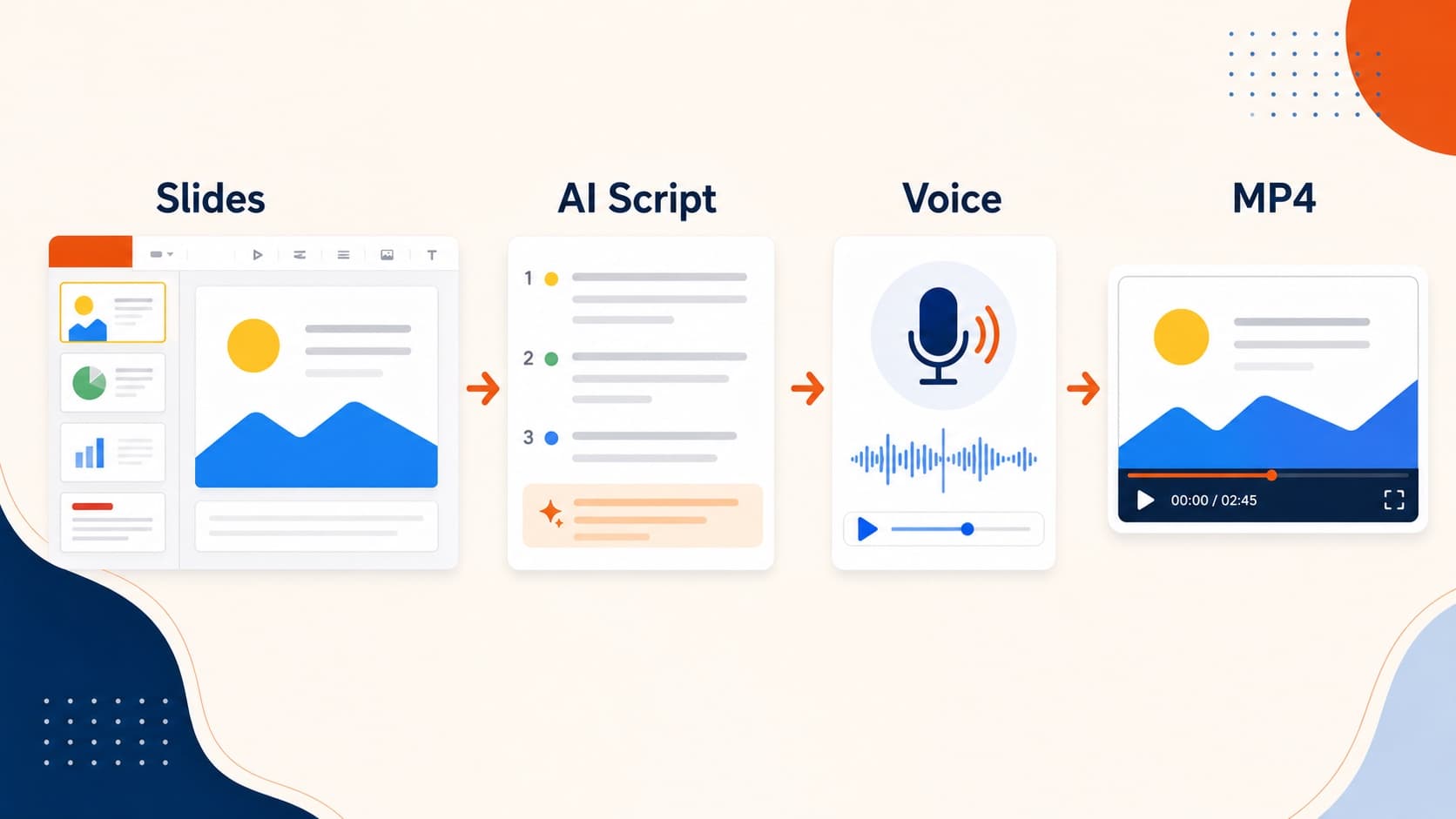
How to Convert Google Slides to Video (MP4 Guide)
Google still has no native Google Slides to MP4 export. Compare Workspace recording, screen capture, and the .pptx AI narration route to turn Google Slides into video.
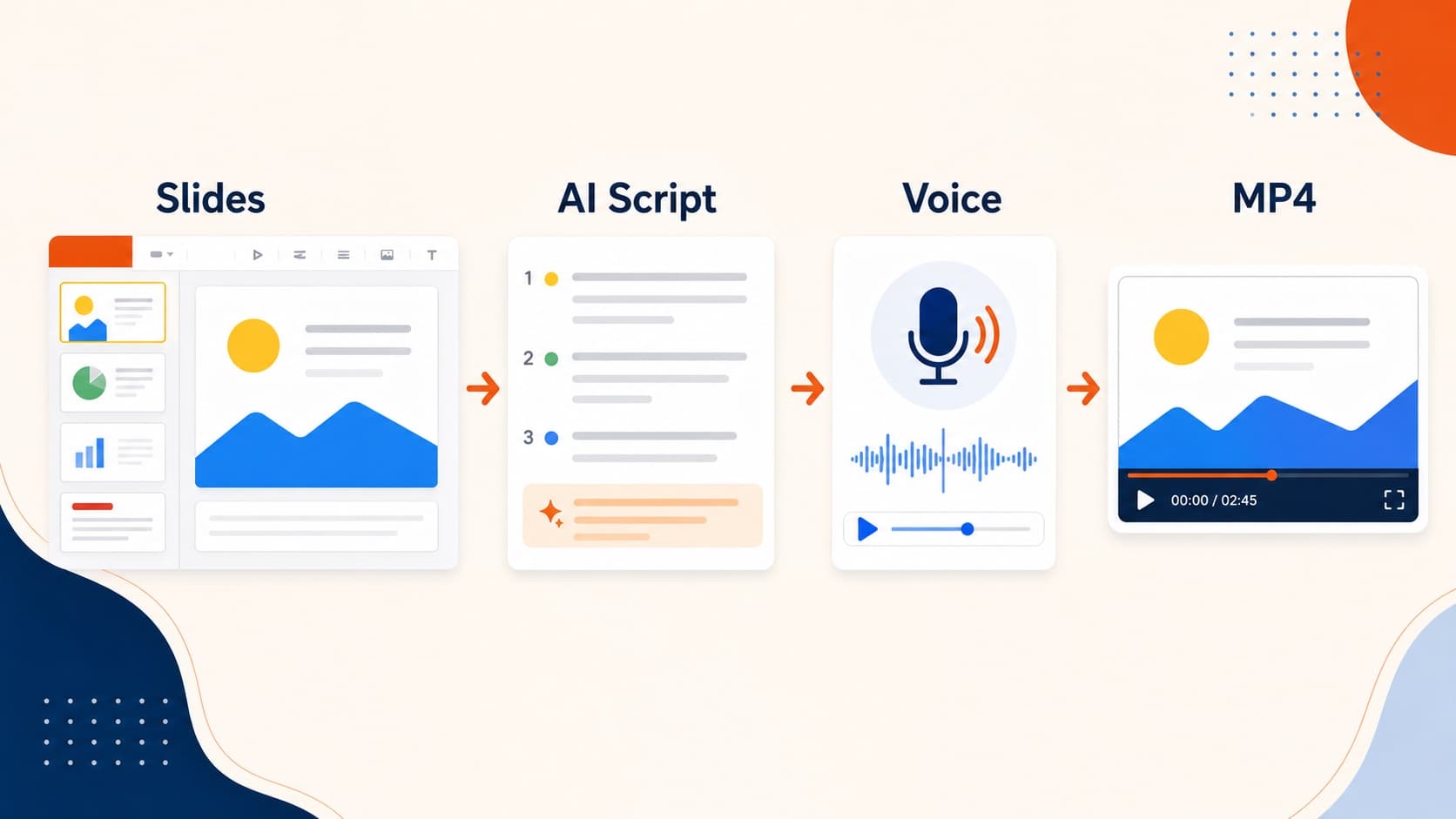
If you need Google Slides to video, you are not missing a hidden menu item. Google Slides still cannot export a portable MP4 the way PowerPoint can. There is no reliable “Download as video” button for every account, and many teams still need a clean file for LMS upload, email, sales follow-up, or course modules.
In 2026 there are three real ways to turn Google Slides into video:
- Use Google’s built-in slides recording on eligible Workspace plans
- Screen-record the presentation
- Download as
.pptx, then create a narrated Google slides to MP4 file with AI
Option 1: Built-in Google Slides recording
Google’s Rec button can capture you presenting the deck, with an optional camera bubble.
Constraints to know before planning around it:
- available mainly on paid Workspace plans
- recordings are capped at 30 minutes
- output is optimized for Drive sharing, not always for a clean portable file
- mistakes require another live take
Use this when your audience already lives in Workspace and a Drive link is enough.
Details: Google’s slides recording documentation.
Option 2: Screen-record the presentation
Present full-screen and capture the display with any recorder. This works on free accounts and preserves animations exactly as they play.
Tradeoffs:
- you need a quiet room and a clean take
- the file is monolithic, so updates usually mean re-recording
- output quality depends on your display resolution
Use this when animation timing or live cursor movement is essential.
Option 3: Download as PowerPoint, then export a narrated MP4
This is the strongest option when you need a reusable Google slides to video pipeline.
- In Google Slides: File → Download → Microsoft PowerPoint (.pptx)
- Upload the
.pptxto OralSlides - Review the per-slide narration script
- Pick a voice and export a 1080p MP4
Why this scales:
- no recording session for every revision
- real portable MP4 for LMS, email, or wiki distribution
- works on personal and Workspace accounts
- one script can support voiceover and captions
If you are new to the conversion flow, use the main convert PowerPoint to video walkthrough after the download step.
What to check after the .pptx export
Google’s PowerPoint export is good, not perfect. Review:
- Fonts that may reflow
- Animations that do not carry into still-frame renders
- Embedded video that will not play inside a narrated export
Standard-layout decks usually convert cleanly.
How to choose
| Need | Best option |
|---|---|
| One-off internal share on paid Workspace | Built-in slides recording |
| Animations or live demo must appear | Screen recording |
| Training, onboarding, sales, course modules | .pptx + AI narration |
| Portable Google slides to MP4 file | .pptx + AI narration |
| Frequent updates | .pptx + AI narration |
Frequently asked questions
Can Google Slides export MP4 natively?
Not in a universal, portable way. Some Workspace plans can record a presentation, but that is different from a simple export Google Slides as video download for every account.
How do I turn Google Slides into video with voiceover?
Download the deck as .pptx, generate or record narration, then export MP4. AI narration is fastest when the deck changes often.
Is the AI route only for PowerPoint users?
No. Google Slides users can stay in Slides for editing, then use PowerPoint export as the bridge into a narrated video workflow.
Related guides
Final takeaway
The scalable answer to Google Slides to video is not another live performance. Keep authoring in Slides, download .pptx when you need distribution, and treat the narrated MP4 as a rebuildable artifact—not a one-time recording.
Author

More Posts
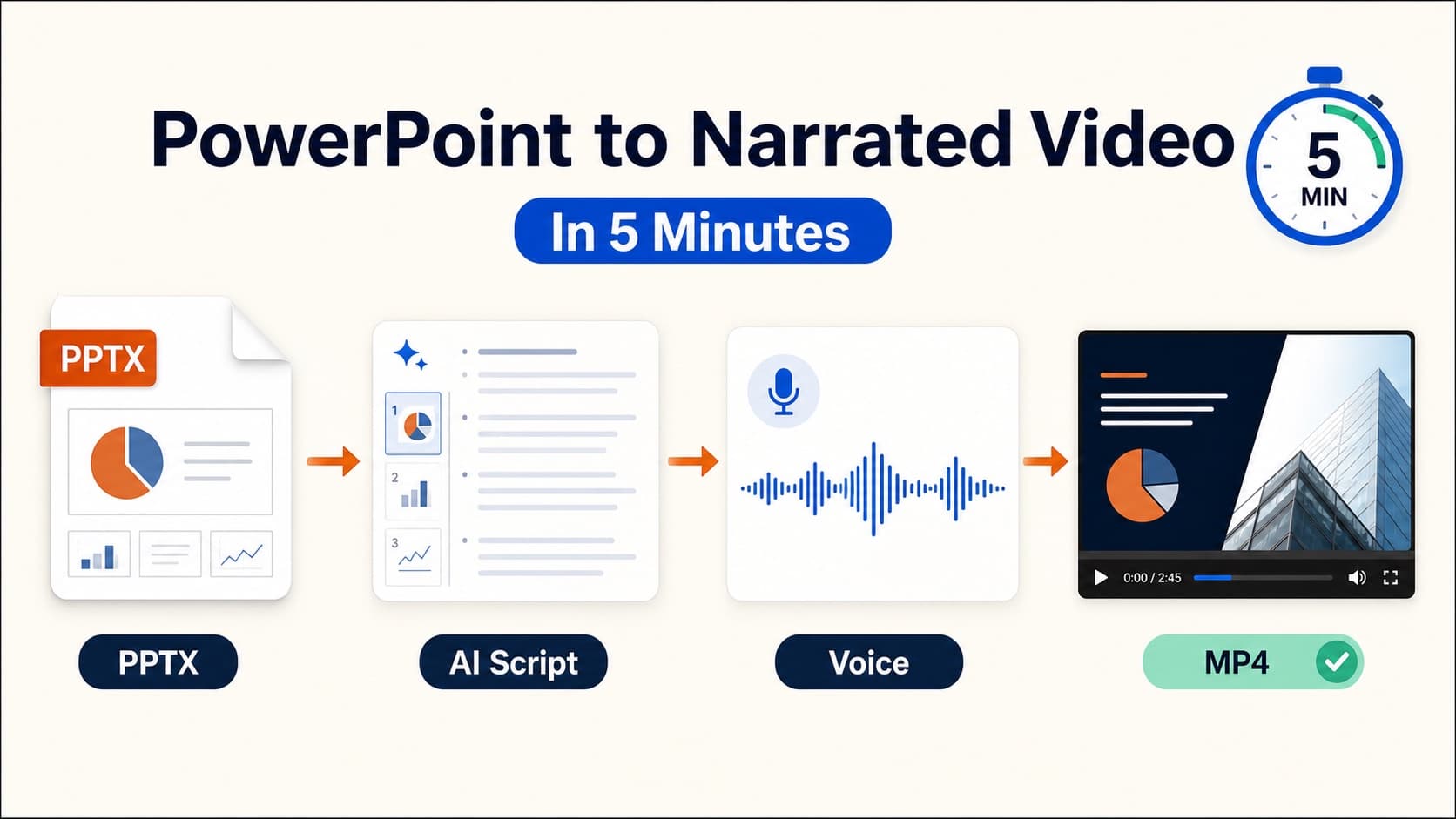
How to Convert PowerPoint to MP4 with Voiceover
Convert PowerPoint to MP4 with clear voiceover. Compare PowerPoint export, screen recording, and AI narration so you get a portable video file for LMS, email, or sales follow-up.
How to Convert PowerPoint to Video with Narration
Learn how to convert PowerPoint to video as a narrated MP4. Compare PowerPoint export, screen recording, and AI voiceover—then export a reusable PPT to video workflow.
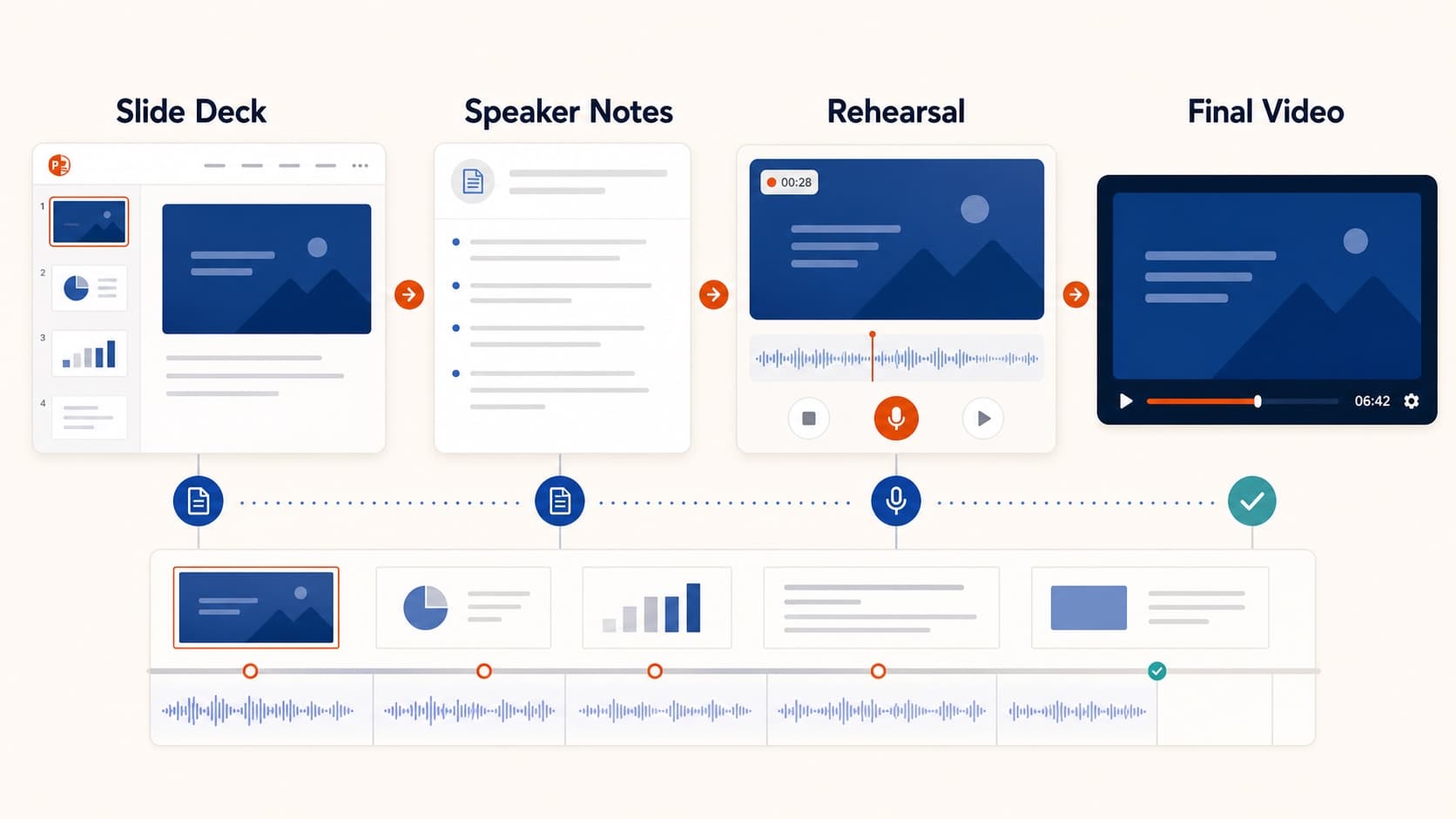
How to Create a Pre-Recorded Presentation Video from Slides
Create a pre-recorded presentation video from your slides without endless takes. Use a script-first workflow to hit conference duration, resolution, and file-size limits.