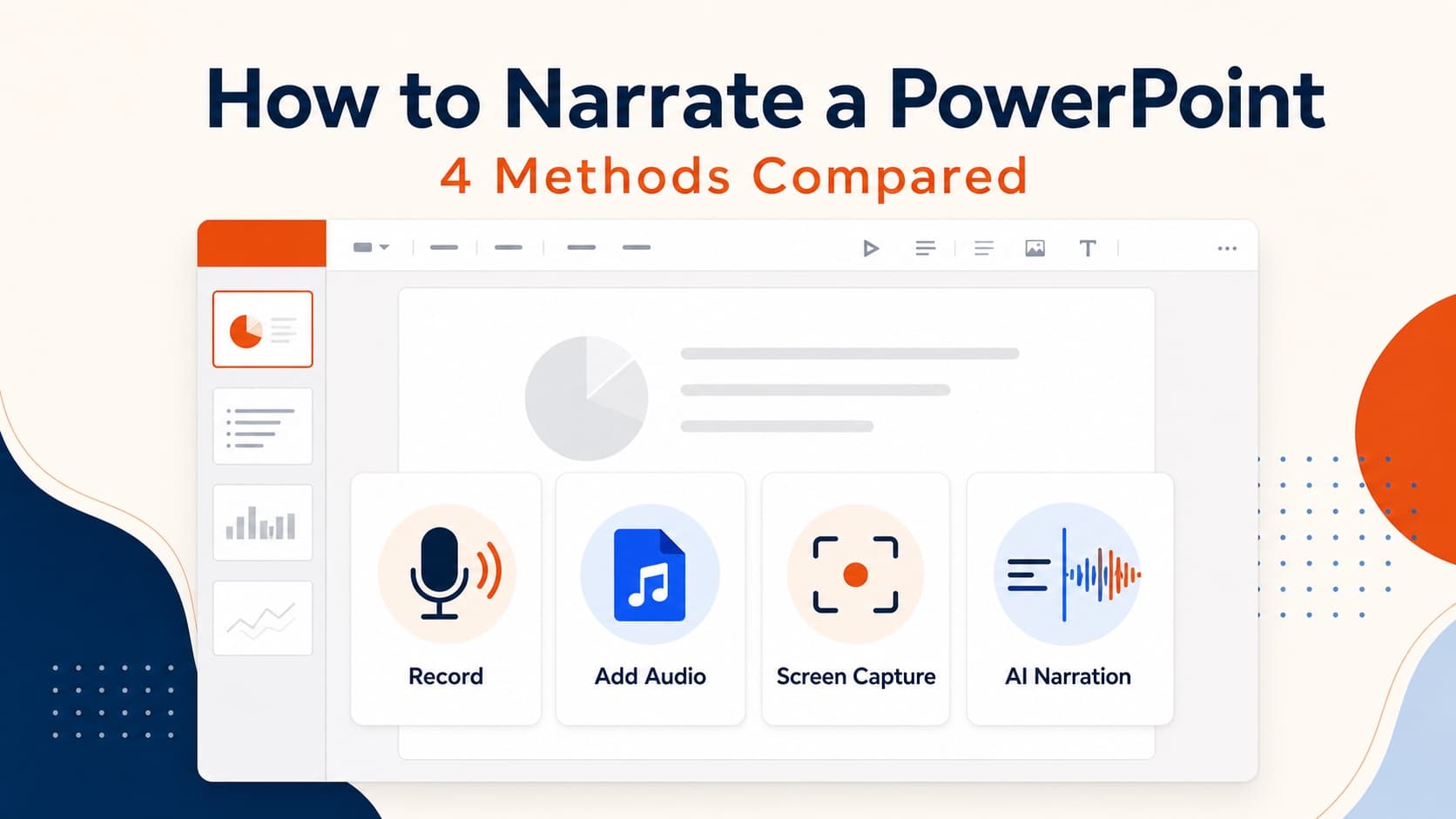
How to Narrate a PowerPoint: 4 Methods Compared
Learn how to narrate a PowerPoint using built-in recording, slide audio, screen capture, or AI voiceover—and choose the best method for your deck.
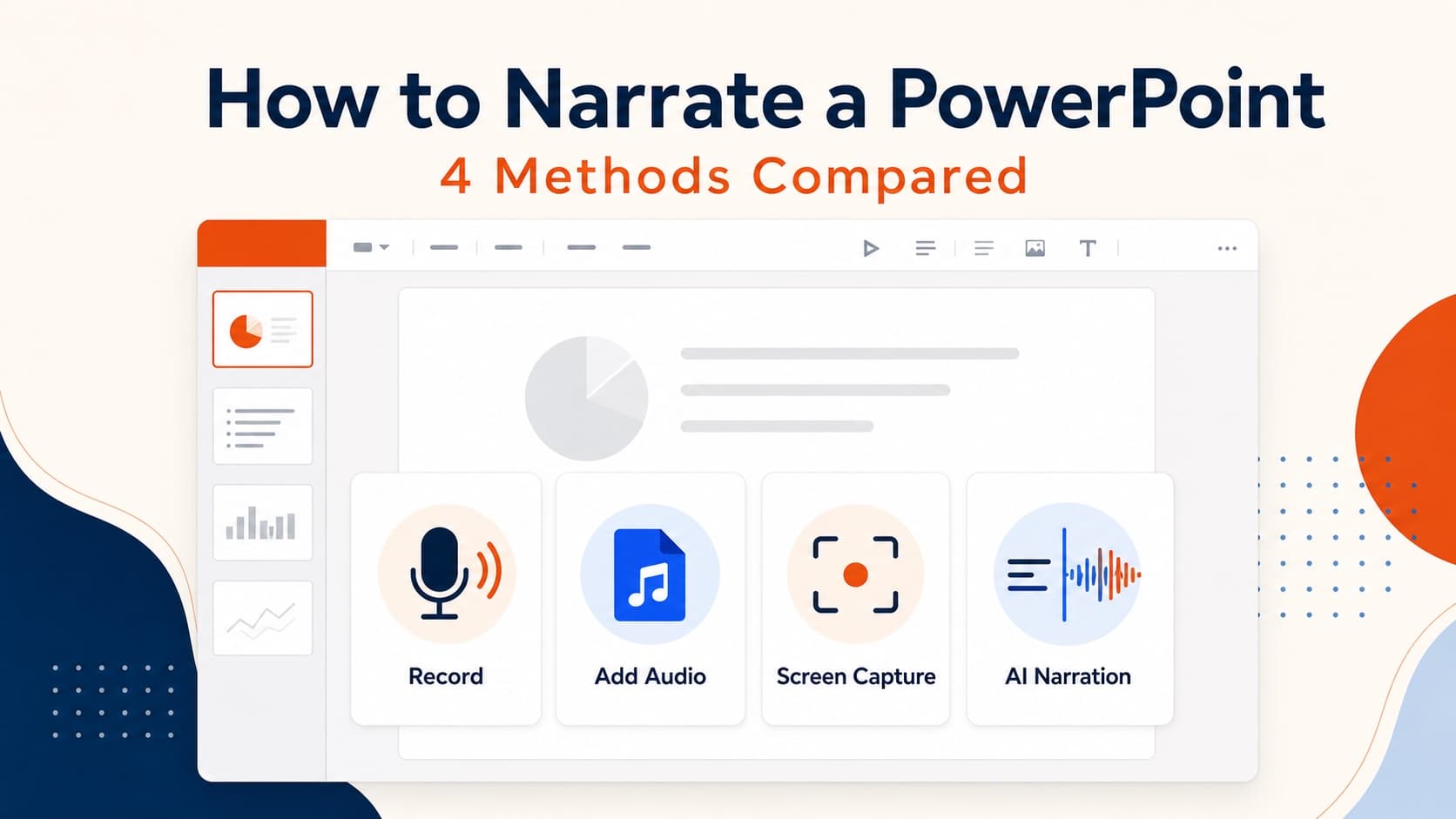
The short answer to how to narrate a PowerPoint is: record inside PowerPoint, attach an audio file to each slide, capture the presentation with a screen recorder, or use AI to write and generate the narration. All four approaches can produce a usable result. The right one depends on whether you need your own voice, how often the deck changes, and whether the final deliverable must be a portable MP4.
PowerPoint's recorder is often the best free choice for a one-off presentation. AI becomes more useful when the deck changes frequently, needs localization, or requires a consistent PowerPoint voice over without repeated recording sessions.
The four methods at a glance
| Method | Best for | Main advantage | Main limitation |
|---|---|---|---|
| PowerPoint built-in recording | One-off talks in your own voice | Free and already installed | Corrections still require recording |
| Audio files on individual slides | Teams with finished audio tracks | Precise slide-level control | Audio production happens elsewhere |
| Screen recording | Presentations with animation or live demos | Captures exactly what happens on screen | Mistakes and updates usually require another take |
| AI narration | Repeatable training, lessons, and async decks | Editable scripts and consistent voice | Not right when the speaker's identity is the message |
If you only need to narrate one short deck and you are comfortable presenting, start with PowerPoint's recorder. If you need to produce or update narrated decks repeatedly, compare the cost of each revision, not just the first export.
Method 1: Record narration inside PowerPoint
Microsoft PowerPoint includes slide-show recording tools on current desktop versions. This is the most direct answer when someone asks how to record narration in PowerPoint without buying another product.
How to record it
- Open the final version of the deck.
- Choose Record or Slide Show → Record Slide Show.
- Select whether to start from the beginning or the current slide.
- Enable your microphone and optional camera.
- Present the deck while advancing the slides normally.
- Review individual slides and re-record any section that needs correction.
- Choose File → Export → Create a Video to render the presentation as an MP4.
PowerPoint stores narration and timing with each slide, so you can repair one page instead of repeating the entire talk. Matching the original volume, room tone, pace, and energy can still be difficult when you return later.
When this method is best
- Your own voice is part of the value.
- You already know the material well enough to speak naturally.
- The deck is unlikely to change after delivery.
- You have a quiet room and a reasonable microphone.
- You do not need multiple language versions.
The built-in recorder is free, familiar, and capable. Do not add an external tool when these conditions describe the project.
Method 2: Add audio files slide by slide
The second way to add narration to PowerPoint is to prepare audio outside the presentation and attach the correct file to each slide. Choose Insert → Audio, select the recording, and configure playback to start automatically when the slide appears.
Name tracks with the slide number, keep a matching numbered script, and verify that every clip starts automatically and finishes before the next page advances.
The downside is coordination. PowerPoint does not write the script, produce the files, normalize the audio, or decide the timing. You still need a separate production process for the PowerPoint voice over, and every script change must be reflected in the correct audio file.
Method 3: Narrate while screen-recording the presentation
A screen recorder captures the slide show and your microphone as one continuous video. This is useful when the presentation contains animations, embedded demonstrations, cursor movement, or other behavior that a static slide export cannot reproduce.
Close notifications, match the required output resolution, test the microphone, and record in short sections. Pause between slides to create clean edit points, then verify the exported MP4 on another device.
Screen capture gives you the most faithful representation of live presentation behavior. It also creates the least flexible source file. If slide 12 changes next month, you may need to reconstruct the same screen, microphone, speaking pace, and edit. For frequently updated material, that repeated production cost becomes more important than the first recording.
Method 4: Use an AI PowerPoint narrator
The fourth answer to how to narrate a PowerPoint is to make the script and audio editable assets instead of a live performance. An AI PowerPoint narrator examines the deck, drafts a spoken explanation for each slide, generates the selected voice, and combines the result with the slide visuals.
This is different from pasting bullet points into a generic text-to-speech box. A useful system should consider the chart, diagram, screenshot, layout, and surrounding pages before deciding what the narration needs to explain. The script should remain visible so a person can correct the message before any audio is approved.
The OralSlides workflow
- Upload a PowerPoint PPTX or PDF presentation.
- Let the model generate a narration script for each selected slide.
- Read the scripts and edit wording, transitions, pronunciation, or pace.
- Choose and preview a voice.
- Generate audio for the approved slides.
- Export a narrated 720p or 1080p MP4, with optional subtitles.
The key advantage is revision. If one slide changes, update its script and regenerate its audio segment. You do not need to reproduce the performance on every unchanged page. The same text-based workflow also makes localization more manageable because each language can be reviewed before the voice is generated.
Want narration without recording it yourself? Try the OralSlides AI PowerPoint narrator to generate an editable script and voice for each slide, then export the approved presentation as an MP4.
How to choose the right narration method
When deciding how to narrate a PowerPoint, ask four questions before you commit to a workflow.
Does the audience need to hear you?
A founder update, keynote, personal course, or leadership message may depend on the speaker's identity. Use your real voice when delivery, authority, or personality is inseparable from the content. AI narration should not imitate a human relationship the audience expects.
For compliance training, software onboarding, product updates, and repeatable lessons, consistency and revision speed often matter more than the identity of the speaker.
Will the deck change again?
The more often a presentation changes, the more valuable slide-level editing becomes. A quarterly training deck may be recorded once but revised many times. Treat the future revisions as part of the production cost.
Do animations need to survive?
OralSlides renders existing slides as still visual pages. PowerPoint animations and transitions are not carried into the final video. Use built-in recording or screen capture when motion is necessary to understand the material.
Do you need a script before you need a voice?
A script helps control duration, terminology, and approval. It lets a subject-matter expert review what will be said without listening through an entire recording. If your draft starts in the notes pane, use the guide to writing better PowerPoint speaker notes before turning those ideas into narration.
Common narration mistakes
- Reading every bullet word for word. Explain why the slide matters, identify the pattern in a chart, or connect the page to the next decision. Replace "as you can see" with the actual insight.
- Ignoring timing until export. Explanatory English is often around 130–160 words per minute. Set a duration and word budget before producing audio.
- Recording before the slides are stable. Finalize the sequence first so structural edits do not create avoidable rework.
- Using inconsistent audio. Record under the same conditions or use one generated voice across the deck so slide-level repairs do not sound obvious.
Frequently asked questions
How do I narrate a PowerPoint presentation for free?
Use PowerPoint's built-in Record feature, review the slide timings, and export through File → Export → Create a Video. This is the best free option when you want to use your own voice and already have desktop PowerPoint.
Can I narrate one PowerPoint slide at a time?
Yes. PowerPoint's built-in recorder supports slide-level recording, and an AI workflow can keep a separate script and audio segment for each page. Both approaches make local corrections easier than a continuous screen recording.
Can PowerPoint turn narration into a video?
Yes. Once narration and timings are present, PowerPoint can export the presentation as an MP4. Check the resolution, slide timings, and final audio before distributing the file.
Can AI write the narration as well as generate the voice?
Yes, but review is essential. OralSlides generates slide-aware scripts and keeps them editable before audio is created. A subject-matter expert should still verify facts, terminology, pronunciation, and claims.
Does an AI-generated PowerPoint voice over include subtitles?
OralSlides can render subtitles from the approved narration script during export. Because the text exists before the voice is generated, the subtitle wording matches the reviewed script instead of relying on a later transcription pass.
The practical recommendation
If this is a one-time talk and your voice matters, record directly in PowerPoint. Use attached audio when a separate production team supplies finished tracks. Use screen capture when animations or live demonstrations must remain visible. Use an AI workflow when the deck changes frequently, needs consistent narration, or must be produced without another recording session.
That is the useful way to answer how to narrate a PowerPoint: choose the workflow based on the next revision as well as the first export. When repeatability is the priority, upload a deck to OralSlides, review the slide-by-slide script, and create the voice only after the message is right.
Related guides
Author

More Posts
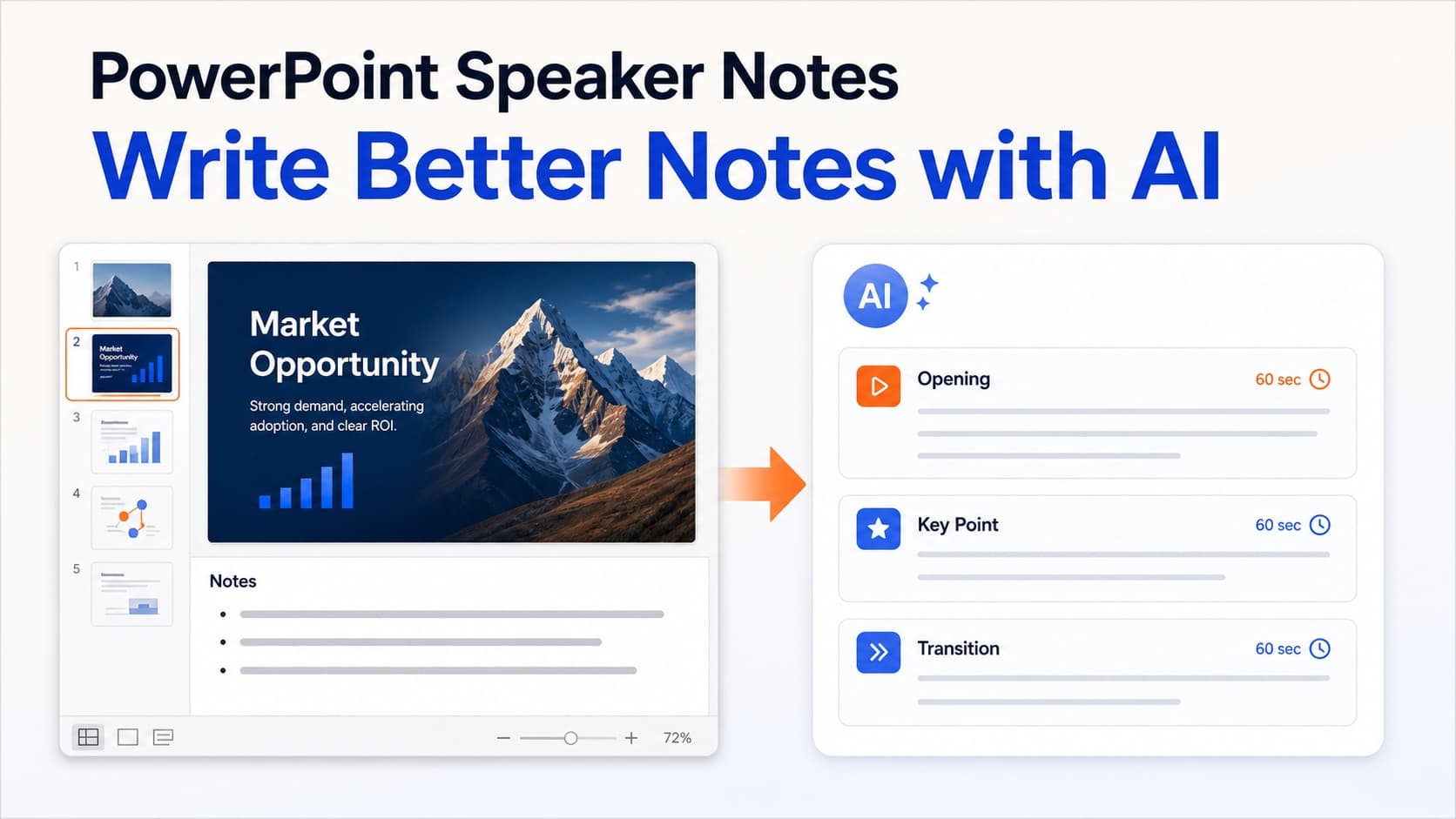
How to Write Better PowerPoint Speaker Notes with AI
Learn how to add, write, format, and improve PowerPoint speaker notes—and use AI to turn slide content into a clear narration script.
How to Use Text to Speech in PowerPoint the Right Way
Use text to speech in PowerPoint without robotic slide reading. Turn speaker notes or AI scripts into clear narration, then export a reusable narrated video.
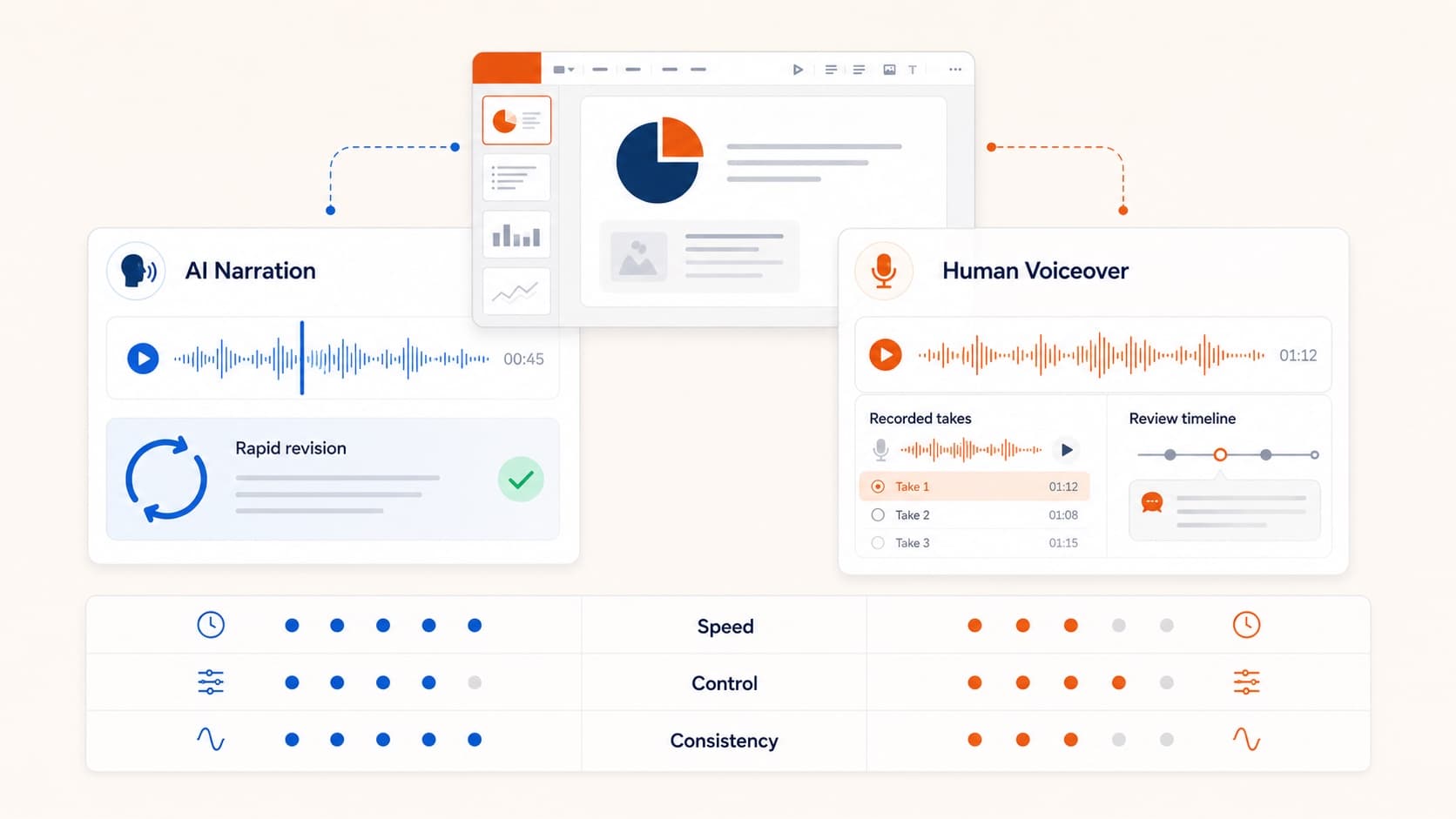
AI PowerPoint Narrator: How Slide-Aware Narration Works
An AI PowerPoint narrator should do more than read bullets. Learn how slide-aware scripts, editable voiceover, and MP4 export create reusable presentation videos.