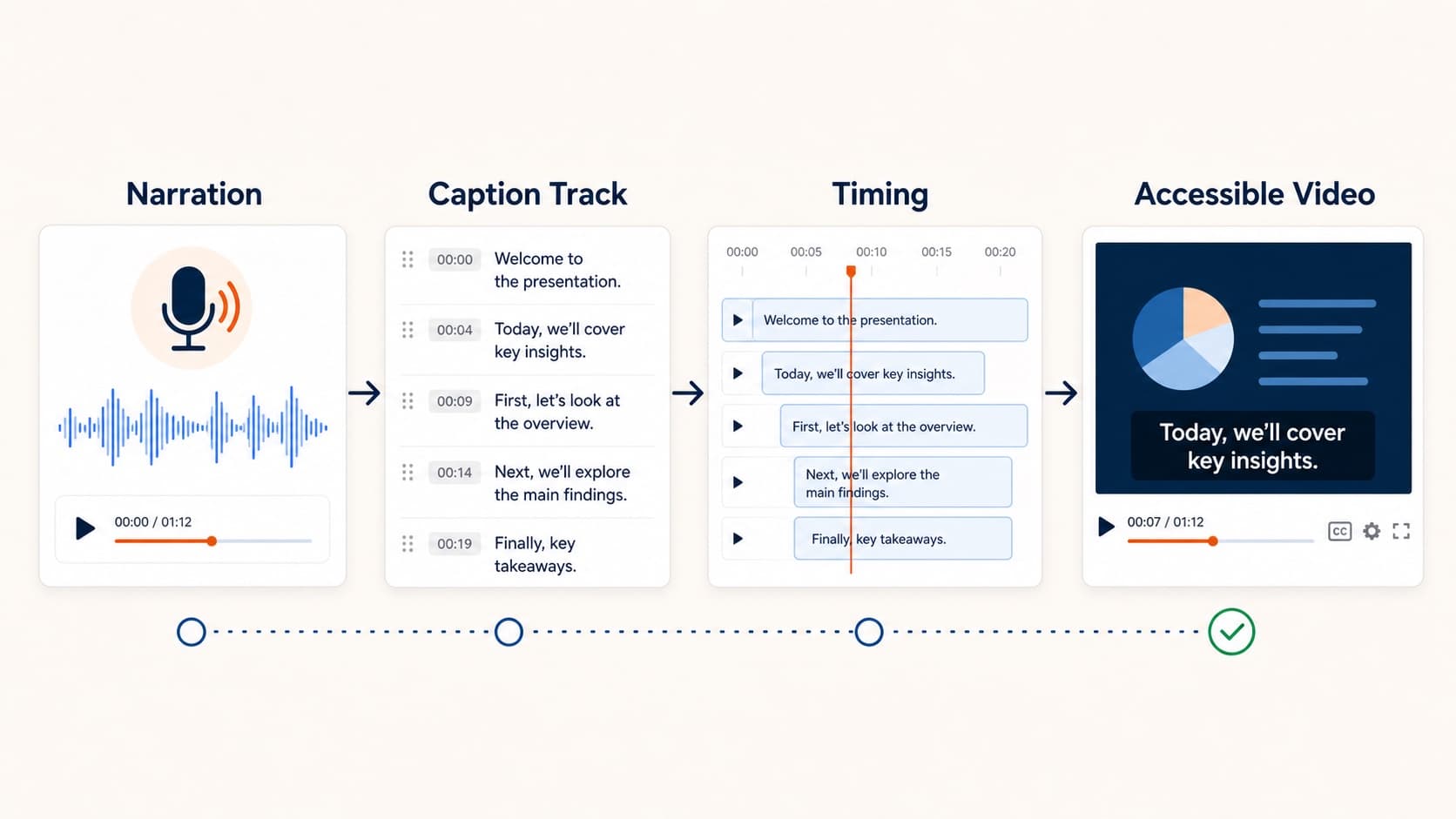
How to Add Captions to a Presentation Video Automatically
Learn how to add captions to a presentation video without a separate transcription pass. Why sound-off viewers bounce, and how script-based narration makes subtitles automatic.
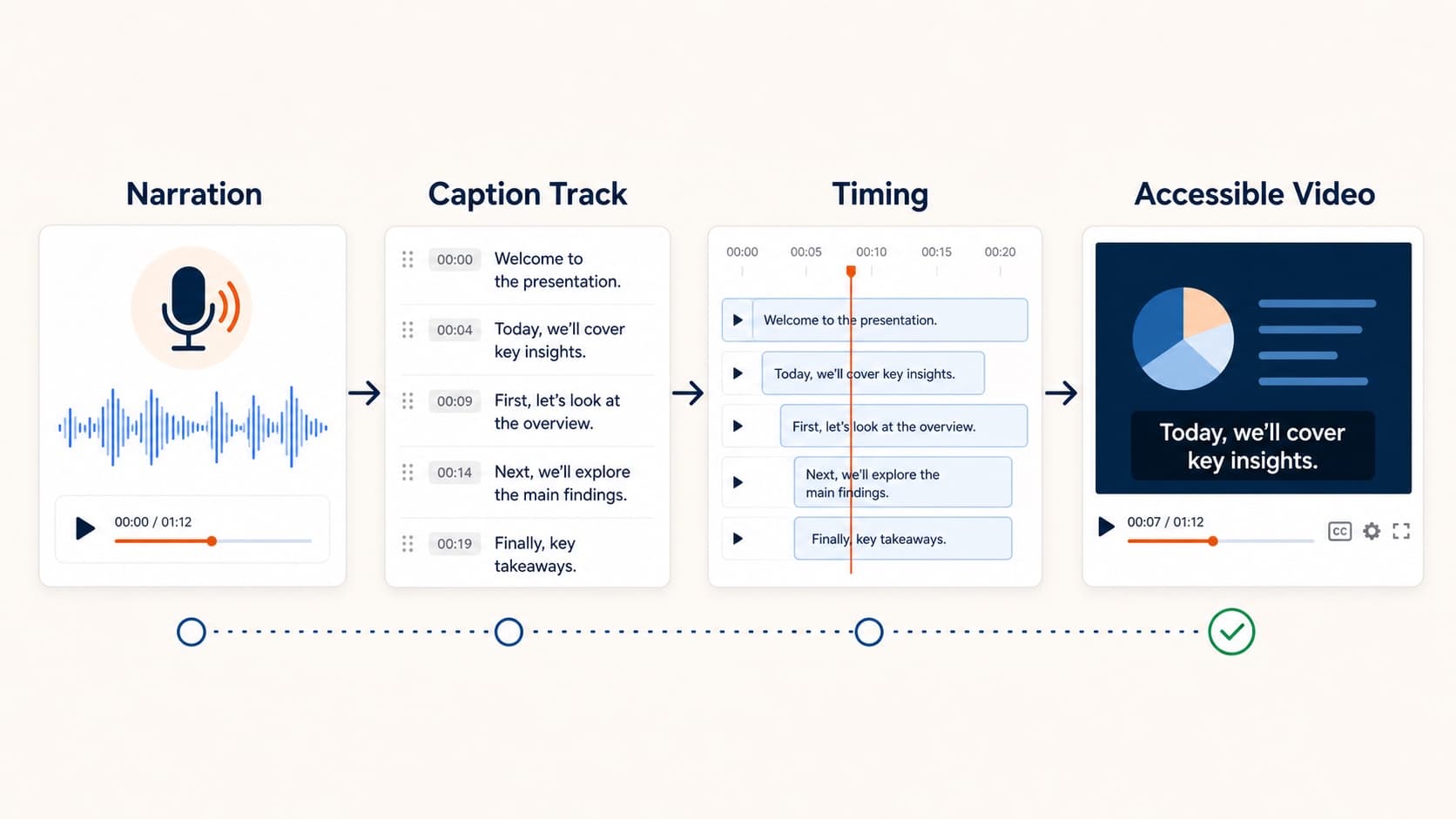
A narrated presentation without captions assumes the viewer has sound on. That assumption fails in offices, commutes, and multitasking tabs. If you need to add captions to a presentation video, the cheapest time to do it is while the narration script still exists—not after the MP4 is finished.
Why presentation videos get skipped without captions
Common viewing contexts:
- open-plan offices
- mobile skimming between meetings
- second-language viewers
- accessibility requirements for training content
Consumer research has long shown many people watch with sound off and are more likely to finish videos when captions are available. Work video is no exception.
Why teams skip captions
The traditional pipeline is already long: write, record, sync, export, then transcribe. Captioning becomes the step that gets cut.
Script-first narration changes the economics. When voice is generated from approved text, the transcript already exists. There is nothing to mishear and little timing guesswork.
How to add captions in an AI slide workflow
- Upload the
.pptx - Review the per-slide narration script
- Generate audio from the approved text
- Export the MP4 with captions/subtitles enabled
OralSlides can render subtitles from the narration script on paid plans. Every script edit improves both voiceover and captions.
For the broader export flow, see convert PowerPoint to video.
Write narration that captions well
- prefer short sentences
- use figures for numbers
- front-load the point in each caption block
- avoid dense clauses that cover the slide visual
Related guides
Final takeaway
If you are already generating narration from text, there is no remaining reason to publish a presentation video most of your audience cannot follow with the sound off. Add captions to the presentation video at export time.
More Posts
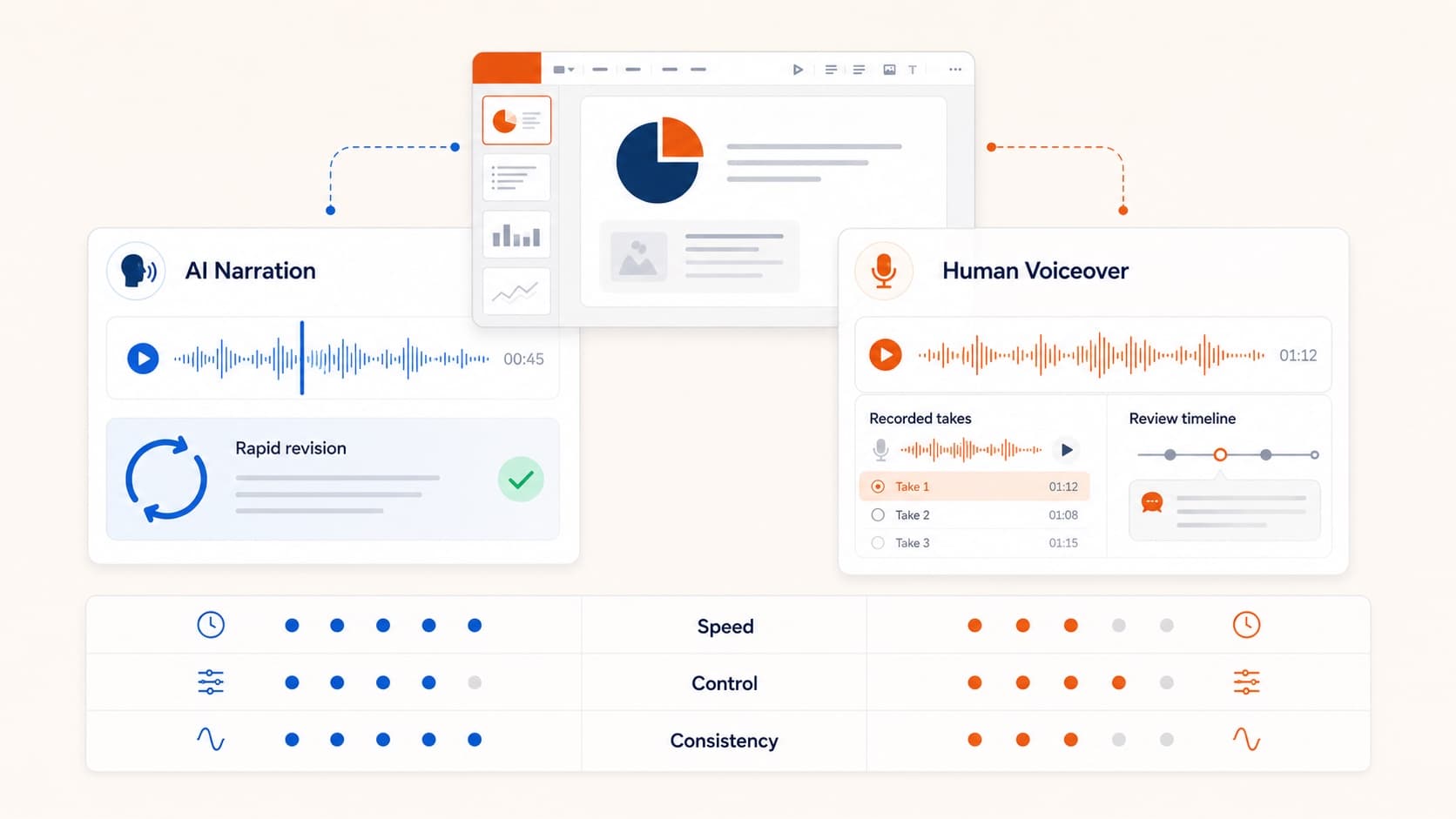
AI PowerPoint Narrator: How Slide-Aware Narration Works
An AI PowerPoint narrator should do more than read bullets. Learn how slide-aware scripts, editable voiceover, and MP4 export create reusable presentation videos.

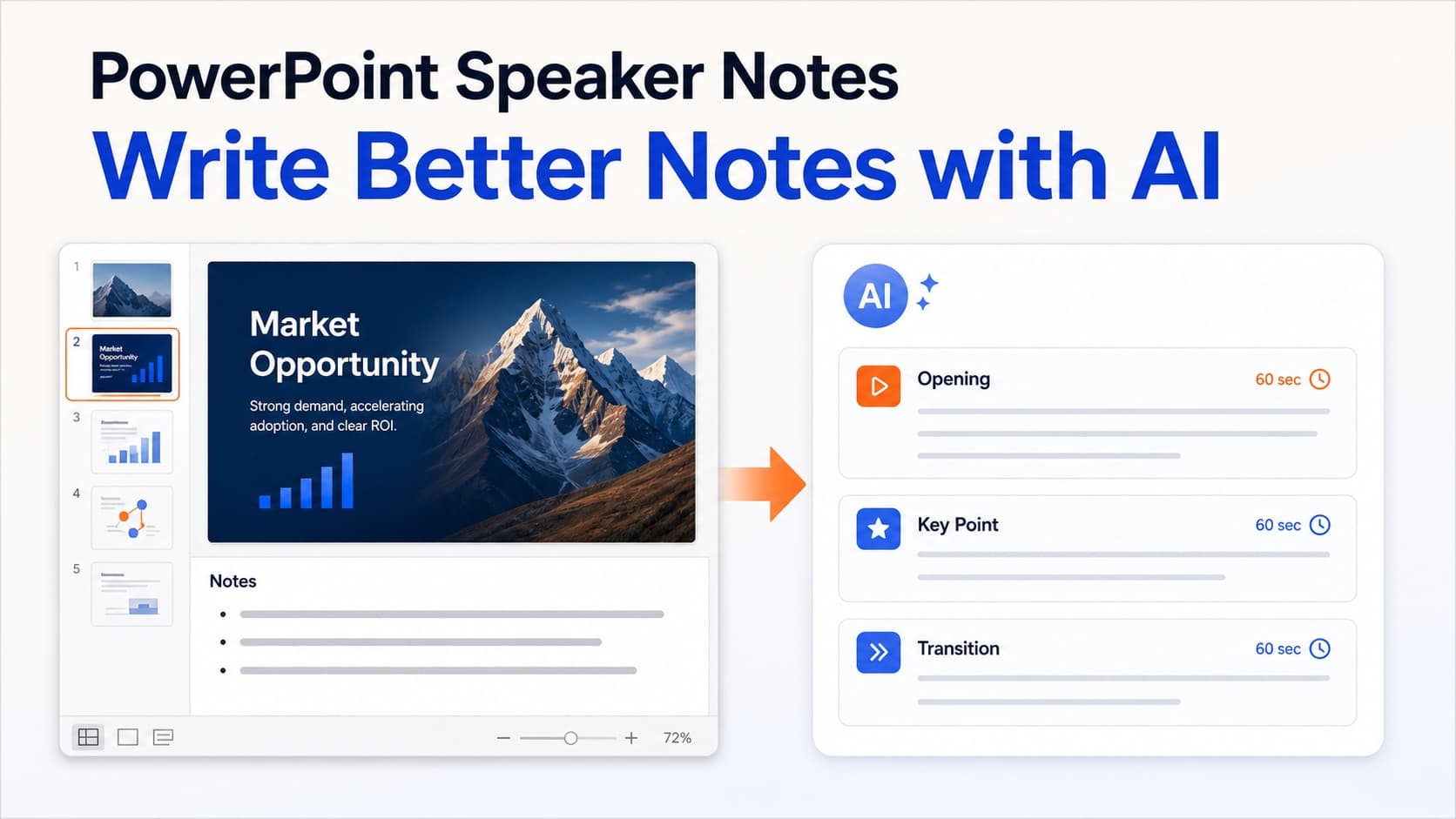
How to Write Better PowerPoint Speaker Notes with AI
Learn how to add, write, format, and improve PowerPoint speaker notes—and use AI to turn slide content into a clear narration script.
How to Use Text to Speech in PowerPoint the Right Way
Use text to speech in PowerPoint without robotic slide reading. Turn speaker notes or AI scripts into clear narration, then export a reusable narrated video.