AI PowerPoint narrator
Give every PowerPoint slide a clear, natural voice
OralSlides reads the text, charts, diagrams, images, and context across your deck—then writes and voices a narration that explains what each slide means.
Use an AI PowerPoint narrator when the deck is already finished but recording, editing, and synchronizing a presenter would slow down delivery. You keep the approved visuals while OralSlides adds the script, voice, timing, and final video.
- No microphone or recording room
- Editable script for every slide
- Ten narration languages
- 720p or 1080p narrated MP4
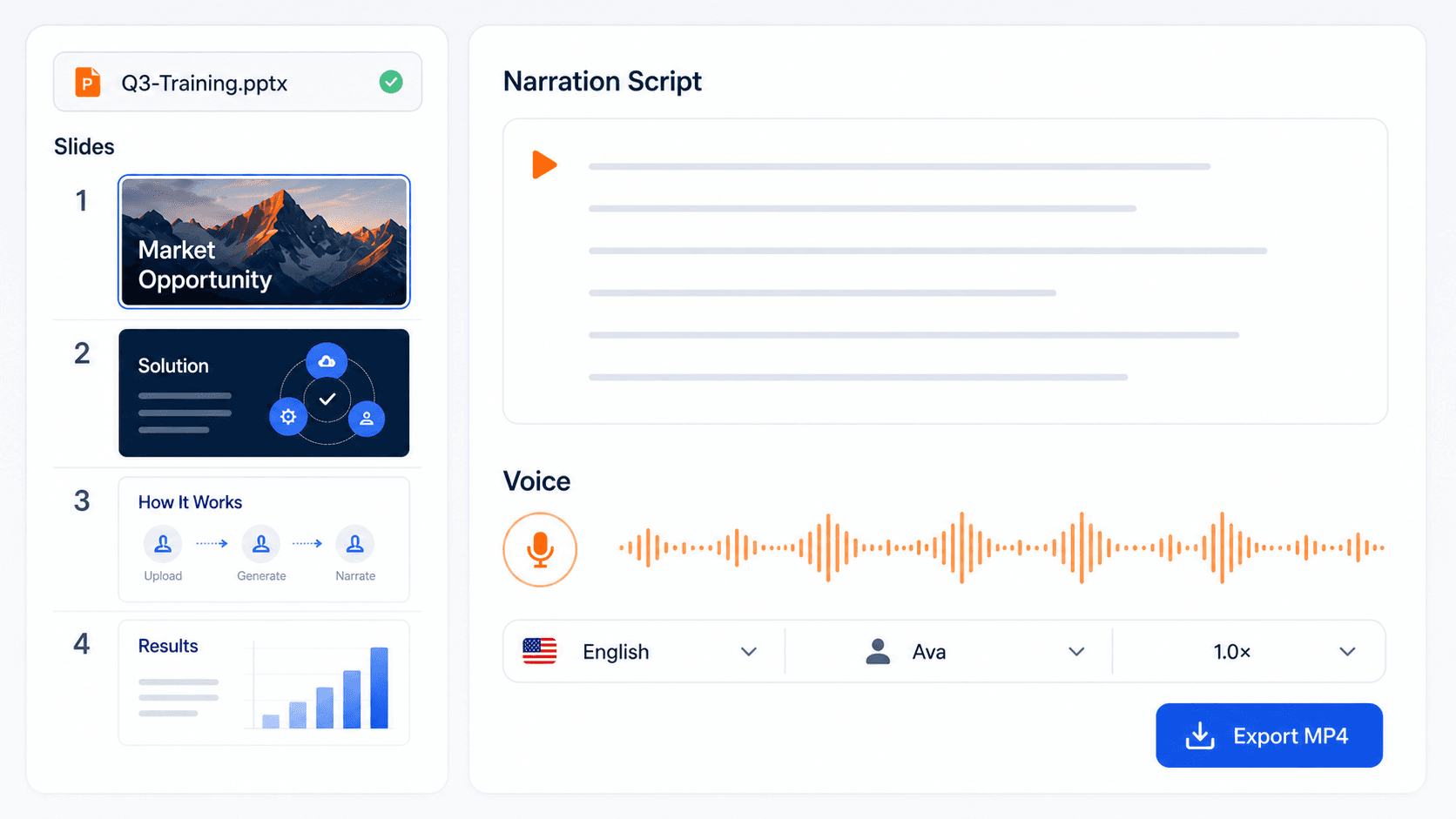
From slide to spoken explanation
An AI PowerPoint narrator should understand before it speaks
Reading bullet points aloud does not make a useful presentation. A chart needs its trend explained, a diagram needs its sequence clarified, and a screenshot needs the viewer's attention directed to the right detail. OralSlides creates that explanatory layer before producing audio.
A reviewable workflow
From PowerPoint to narrated MP4 in four steps
OralSlides is PowerPoint narration software for people who want automation without giving up editorial control. The script remains visible and editable throughout the process.
- 01
Upload the deck
Start with a PowerPoint PPTX or PDF presentation. OralSlides renders the existing pages instead of redesigning them.
- 02
Generate slide-aware scripts
AI drafts a narration for each slide while using surrounding pages to keep transitions and terminology consistent.
- 03
Review the narration and voice
Edit text directly, ask AI to rewrite a section, review the proposed changes, and preview a voice before creating audio.
- 04
Export the narrated video
Render the presentation as an MP4, choose 720p or 1080p, and optionally include subtitles generated from the approved script.
Fix one slide without starting over
Recorded presentations are expensive to revise because the voice, room tone, pace, and timing must match the original take. With OralSlides, the unit of revision is one slide. Edit that script, regenerate that audio segment, and leave every approved page alone.
Natural AI voiceover for PowerPoint, without the recording setup
You do not need a microphone, a quiet room, or a confident live take. Choose a presentation-ready voice, preview its style, and keep the delivery consistent across the entire deck. The same approved script can also be voiced in another supported language without rebuilding the visual presentation.
This makes the AI PowerPoint narrator especially useful for recurring material: quarterly training, weekly product updates, course lessons, and sales decks that change whenever the product or pricing changes.
Built for decks that already carry the story
OralSlides does not replace your approved presentation design. It adds the spoken layer that helps viewers understand the deck when no presenter is in the room.
Choose the right narration method for the job
Live recording remains the right choice when the presenter's identity or performance is central to the message. An AI PowerPoint narrator is strongest when speed, repeatability, and slide-level revision matter more than appearing on camera.
| Method | Writes the script | Understands the slide | Edit one slide | Exports MP4 |
|---|---|---|---|---|
| PowerPoint recording | No | Presenter does | Re-record manually | Yes |
| Basic text-to-speech | No | No | Sometimes | Usually no |
| Screen recorder | No | Presenter does | Difficult | Yes |
| OralSlides | Yes | Yes | Yes | Yes |
For detailed setup instructions and the tradeoffs of each option, read how to narrate a PowerPoint using four different methods. If the script begins as presenter notes, see the guide to writing better PowerPoint speaker notes.
AI PowerPoint narrator FAQ
What happens to your deck, script, audio, and final export.
- Can AI narrate a PowerPoint presentation?
- Yes. OralSlides uploads a PPTX or PDF presentation, creates an editable script for each slide, generates the selected AI voice, and combines the narration with the original slide visuals in an MP4.
- How is this different from basic text-to-speech?
- Basic text-to-speech reads text that you provide. OralSlides first analyzes the slide and writes the explanation, using charts, diagrams, images, layout, and surrounding slides as context before it creates audio.
- Can I edit the narration before generating voiceover?
- Yes. Every slide has its own editable script. You can edit it manually or ask AI to rewrite it, review the proposed changes, and generate audio only after the wording is approved.
- Can I update only one slide?
- Yes. If a slide changes, update that slide script and regenerate its audio segment. The other approved scripts and audio tracks can stay unchanged.
- Does OralSlides preserve my PowerPoint design?
- Yes. OralSlides renders your existing slide pages and uses them as the visual track. It does not rebuild your deck, although PowerPoint animations and transitions are not included in the exported video.
- Can I use PowerPoint speaker notes?
- Speaker notes can help guide the narration workflow, but OralSlides primarily generates its own slide-by-slide narration script from the deck. It does not write the generated script back into the PPTX speaker-notes field.
- Which languages and export formats are supported?
- OralSlides supports narration in ten languages and exports 720p or 1080p MP4 video. You can also include subtitles created from the approved narration script.
Let the deck speak for itself
Upload an existing presentation, review the slide-aware narration, choose a voice, and export the finished MP4 from one workspace. Try the AI PowerPoint narrator with 30 trial credits.