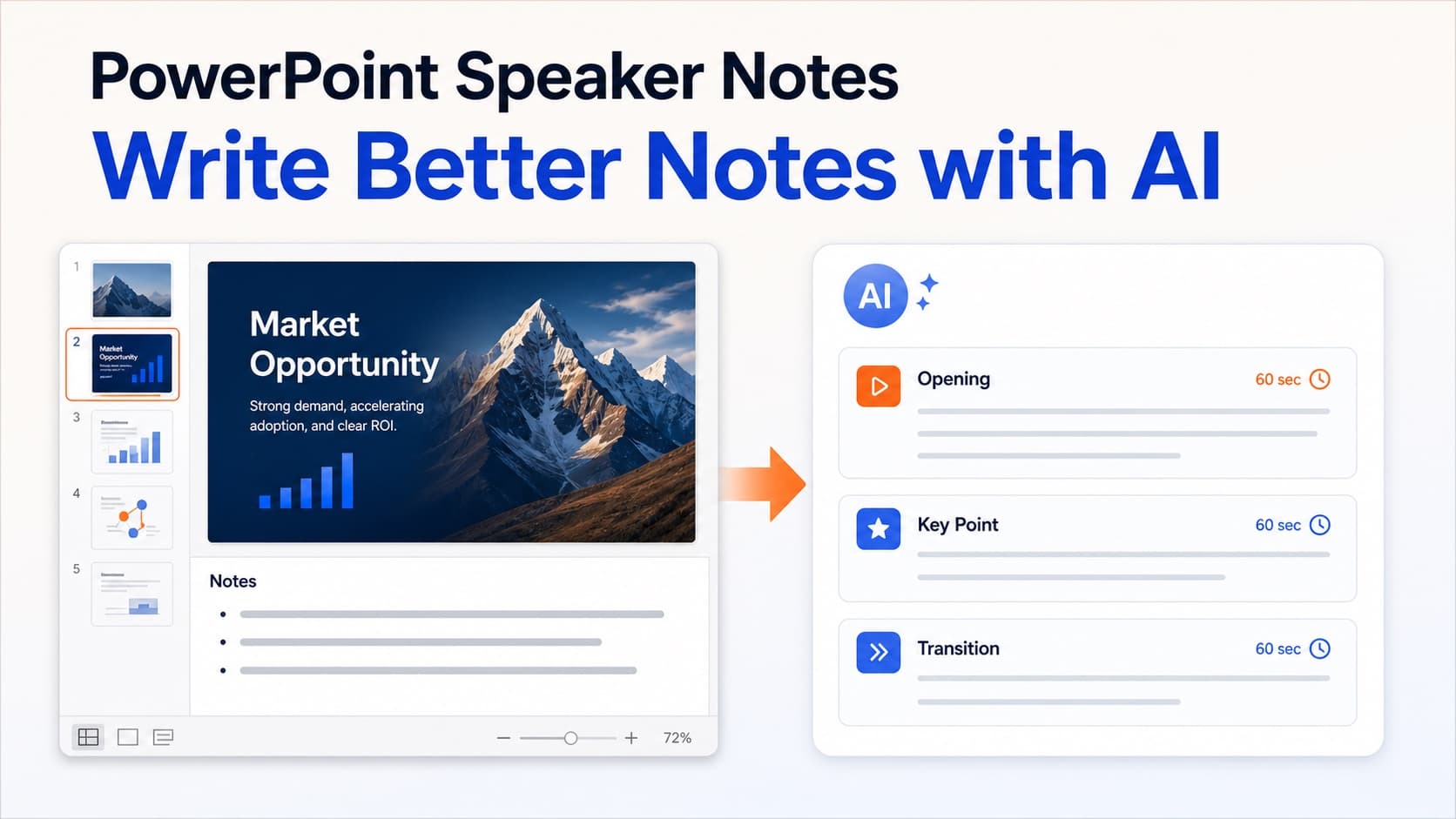
How to Write Better PowerPoint Speaker Notes with AI
Learn how to add, write, format, and improve PowerPoint speaker notes—and use AI to turn slide content into a clear narration script.
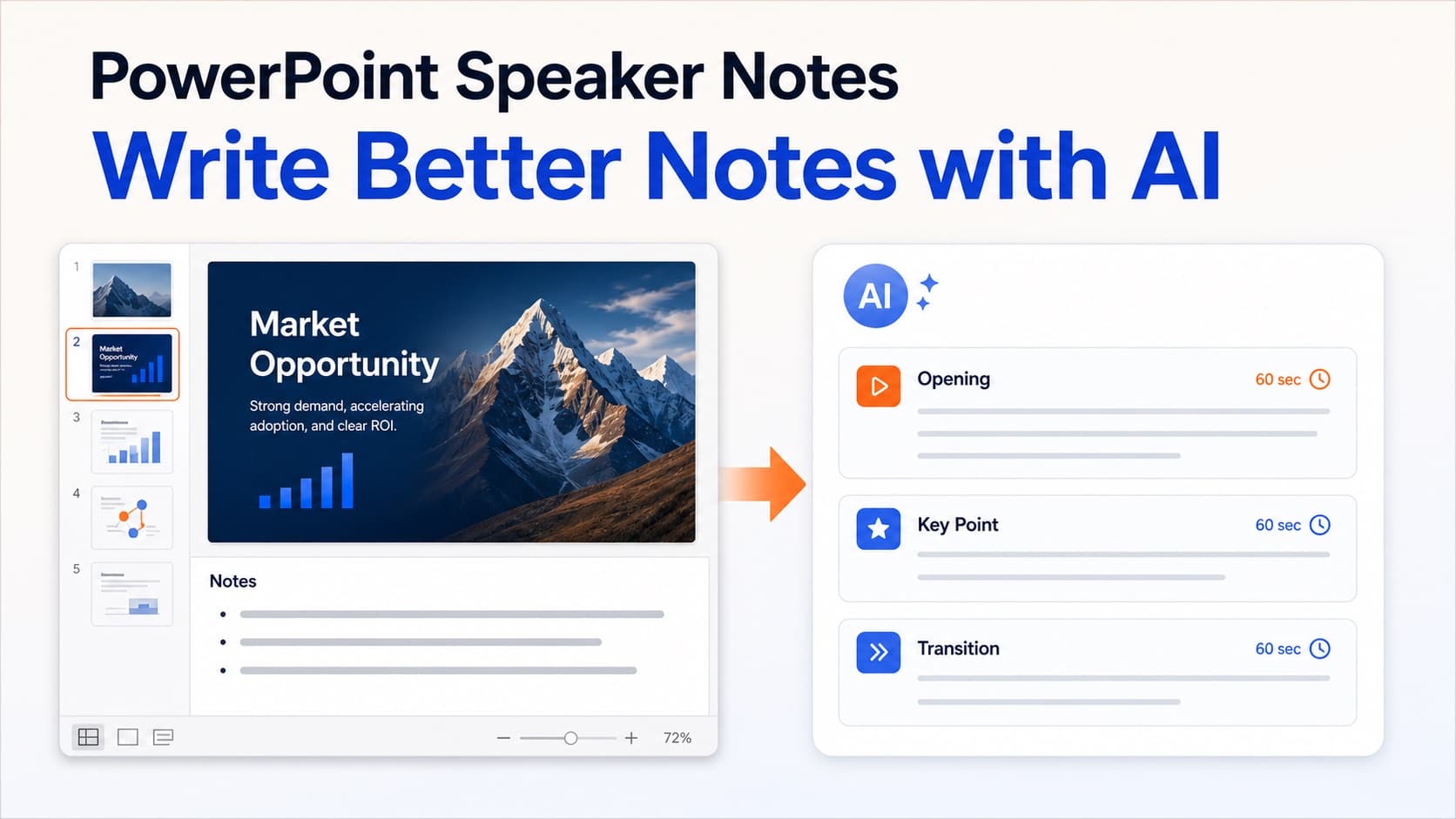
Good PowerPoint speaker notes do not repeat the slide. They explain the point the audience cannot get from the visual alone: why a number matters, what to notice in a diagram, how one idea connects to the next, and what action should follow. They also make a presentation easier to rehearse, hand off, record, or convert into an asynchronous video.
This guide shows how to add and view notes, how to write them efficiently, and how to use AI without producing generic copy. It also explains the important difference between notes for a live presenter and a finished recording script.
What are PowerPoint speaker notes?
Speaker notes are private text attached to an individual slide. The presenter can see them in Presenter View, but the audience normally sees only the slide. They can contain reminders, transitions, evidence, pronunciation help, timing cues, or a complete spoken script.
The notes pane is useful because it keeps the spoken layer next to the visual source. When slide 12 changes, the explanation for slide 12 is easy to find. That structure is far safer than storing one long script in a separate document with no reliable connection to the slide numbers.
Notes can be short prompts for an experienced speaker, required talking points, a fully approved recording script, or production guidance. Decide which kind you need before writing; a keynote and a compliance video require very different levels of detail.
How to add speaker notes in PowerPoint
In desktop PowerPoint, open Normal view and locate the notes pane below the slide. If it is hidden, select Notes in the status bar. Click the pane and type the explanation; it remains attached to that page when you reorder the deck. Use View → Notes Page when you need more writing space or a printable review copy.
How to see notes while presenting
Use Presenter View with two displays so the audience sees the slide while you see the current page, next page, timer, and notes. Test the display arrangement before the meeting. For recording, keep notes on a second display or use a notes-page PDF so another window does not appear in the capture.
A practical structure for every slide
The fastest way to improve PowerPoint speaker notes is to use the same small structure repeatedly. For most business, training, and teaching decks, four elements are enough.
1. State the slide's purpose
Write one sentence explaining why the audience is seeing this page now. This prevents notes from becoming an inventory of visible objects.
Weak:
This slide shows our quarterly revenue chart.
Better:
Revenue recovered in the second half, but the chart shows that the improvement came from expansion accounts rather than new customers.
The better version gives the viewer an interpretation instead of a label.
2. Identify the evidence
Choose the one or two details that support the point. If the slide contains six numbers, the audience rarely needs all six read aloud. Direct attention to the comparison, exception, or trend that changes the decision.
3. Add context that is not on the slide
This might be a definition, an assumption, a customer example, or the reason a metric changed. Keep the visual concise and put the explanatory depth in the notes.
4. Write the transition
End with a sentence that creates a reason for the next slide. Useful transitions express logic rather than navigation:
That retention problem explains why the next phase focuses on activation rather than acquisition.
Avoid empty transitions such as "moving on" or "on the next slide."
Speaker notes template
Copy this template into the notes pane when a slide needs a complete explanation:
Purpose: Why this slide appears here.

Key message: The sentence the audience should remember.

Evidence: The detail that supports the message.

Context: Information the audience cannot see.

Transition: The logical bridge to the next slide.

Timing / pronunciation: Optional production guidance.
Speaker notes versus a recorded script
The terms overlap, but the deliverables are not identical. PowerPoint speaker notes are usually written for a person who can improvise, react to the room, and clarify when the audience looks confused. Recorded copy must work without that live feedback.
A finished narration script therefore needs:
- complete sentences that sound natural when spoken;
- explicit references to the relevant visual detail;
- transitions that still make sense in a recorded video;
- controlled terminology and pronunciation;
- a word count that matches the target duration;
- no private reminders that should never be read aloud.
If your notes contain text such as "pause here," "ask for questions," or "tell the customer story," rewrite those instructions as the actual words the recorded audience should hear.
Control presentation length with a word budget
Notes expand easily because the slide does not show how long the explanation will take. Use 140 spoken words per minute as a conservative planning number:
| Target length | Approximate script budget |
|---|---|
| 3 minutes | 420 words |
| 5 minutes | 700 words |
| 10 minutes | 1,400 words |
| 15 minutes | 2,100 words |
Divide the total according to importance, not evenly. Add the word counts before recording and shorten repeated framing first.
How to use AI to draft speaker notes
An AI speaker notes generator can remove the blank-page problem, but the input and review process determine whether the output is useful. A generic prompt based only on extracted slide text often produces a polished version of the bullets. That is not enough.
Give the model the slide image or structured visual information when possible. Ask it to identify the slide's purpose, interpret the key visual, use context from surrounding pages, and avoid reading labels word for word. Also provide the audience, tone, target duration, and terminology that must remain unchanged.
A useful request looks like this:
Write a 90-word spoken explanation for this slide.
Audience: new customer-success managers.
Goal: explain why activation predicts retention.
Interpret the chart instead of listing every value.
Use the surrounding slides to create a natural transition.
Do not invent metrics or customer claims.
Review the result for facts, names, numbers, and causal claims. AI can draft the language, but the owner of the presentation remains responsible for accuracy.
Turn slide content into a reviewable narration script
OralSlides analyzes the rendered page and surrounding deck, then generates an editable narration script for each selected slide. You can revise the wording, review AI-proposed changes, preview a voice, and generate audio only after the script is approved.
This is useful when PowerPoint speaker notes are missing, inconsistent, or too abbreviated for a recording. It is also useful when the slide contains information outside the text layer, such as charts, diagrams, screenshots, and visual grouping.
OralSlides does not write the generated narration back into the PPTX speaker-notes field. The reviewed text lives in the OralSlides project, where it can be edited and used to create the narrated MP4. If your workflow requires notes inside the original PowerPoint file, copy the text into the notes pane yourself.
Already have the slides? Use the OralSlides AI PowerPoint narrator to generate an editable script and voiceover for every selected page.
Edit AI notes so they sound human
- Remove descriptions of the obvious. Replace repeated titles and visible labels with the conclusion, comparison, or reasoning the visual supports.
- Shorten the opening. Delete phrases such as "On this slide, we can see" and start with the idea itself.
- Restore the author's point of view. Replace vague language with the real recommendation and tradeoff when the source supports it.
- Read it aloud. Shorten nested clauses, expand unfamiliar abbreviations, and add pronunciation guidance where needed.
- Check the transition in sequence. Read the end of one page with the start of the next and remove repeated setup.
- Separate production cues from spoken copy. Instructions such as "pause" or "ask for questions" should not become generated audio.
- Verify every claim. Check generated numbers, names, and conclusions against the approved deck.
Frequently asked questions
Can viewers see PowerPoint speaker notes?
Not during a normal slide show. The audience sees the presentation while the presenter can see notes in Presenter View. Notes may become visible if you share the wrong display, distribute the original PPTX, or intentionally print notes pages.
Can PowerPoint generate speaker notes automatically?
PowerPoint and AI tools can help draft notes, depending on the version and services available. Always check generated content against the slide and source material. Automation should produce a reviewable first draft, not an unverified final script.
How long should notes be?
Use the shortest form that supports the delivery. Live presenters may need only prompts. Recorded narration needs complete spoken sentences and a word budget tied to the target duration.
Can I convert notes into AI voiceover?
Yes. You can provide approved text to a voice-generation tool or use a slide-aware workflow that generates and voices the script. If you are deciding between manual recording and AI, compare the four methods in How to Narrate a PowerPoint.
A better notes workflow
Start by deciding whether the notes are prompts, talking points, or a final script. Use a repeatable structure, assign a word budget, and review the pages in sequence. Let AI create a first draft when it can see enough slide context, but keep a person responsible for accuracy and tone.
When the goal is a narrated video rather than a live presentation, treat the notes as source material for a finished script. Open OralSlides, review the explanation slide by slide, and generate the voice only when the words are ready to be heard.
Related guides
Author

More Posts
How to Use Text to Speech in PowerPoint the Right Way
Use text to speech in PowerPoint without robotic slide reading. Turn speaker notes or AI scripts into clear narration, then export a reusable narrated video.
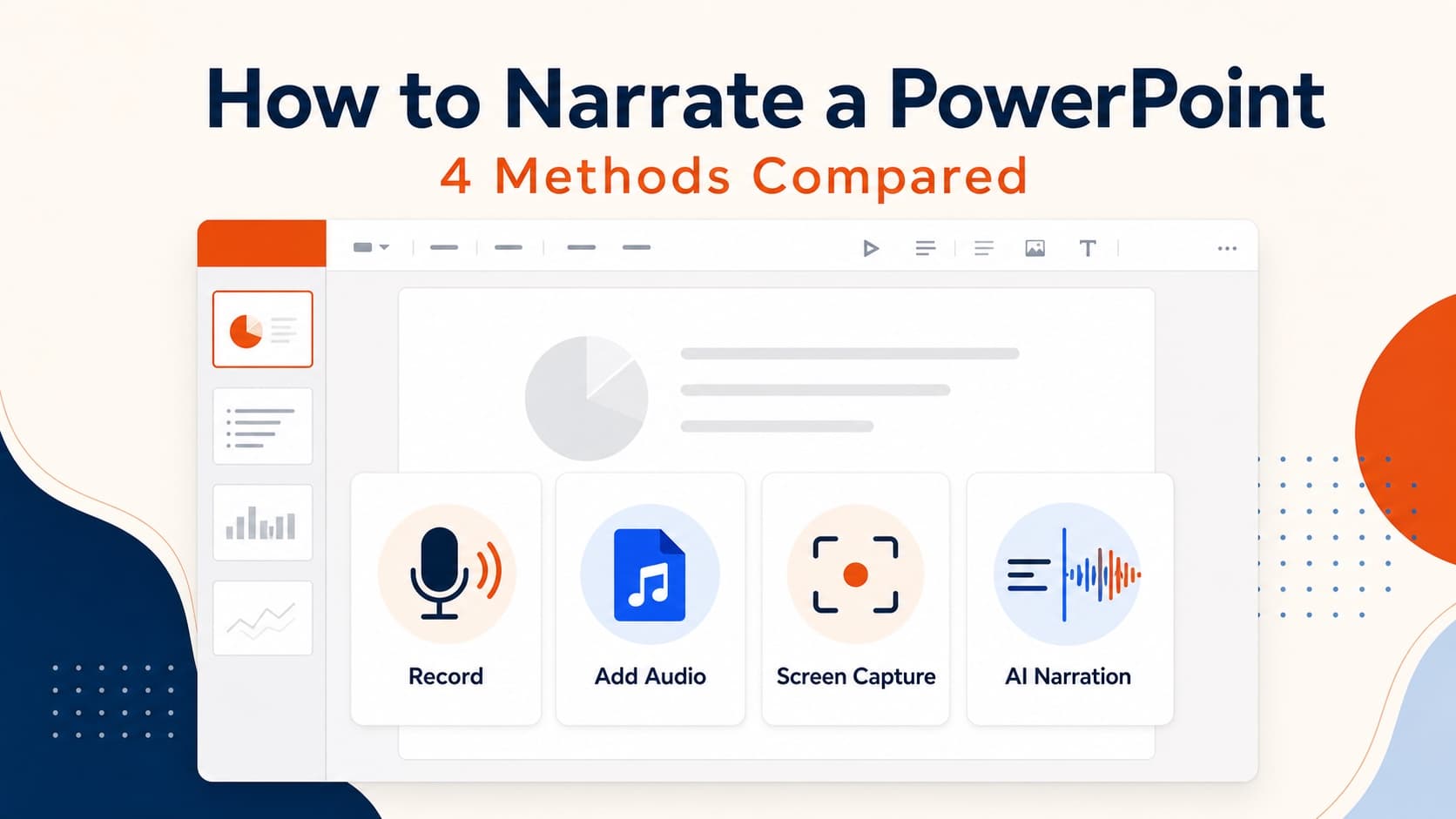
How to Narrate a PowerPoint: 4 Methods Compared
Learn how to narrate a PowerPoint using built-in recording, slide audio, screen capture, or AI voiceover—and choose the best method for your deck.
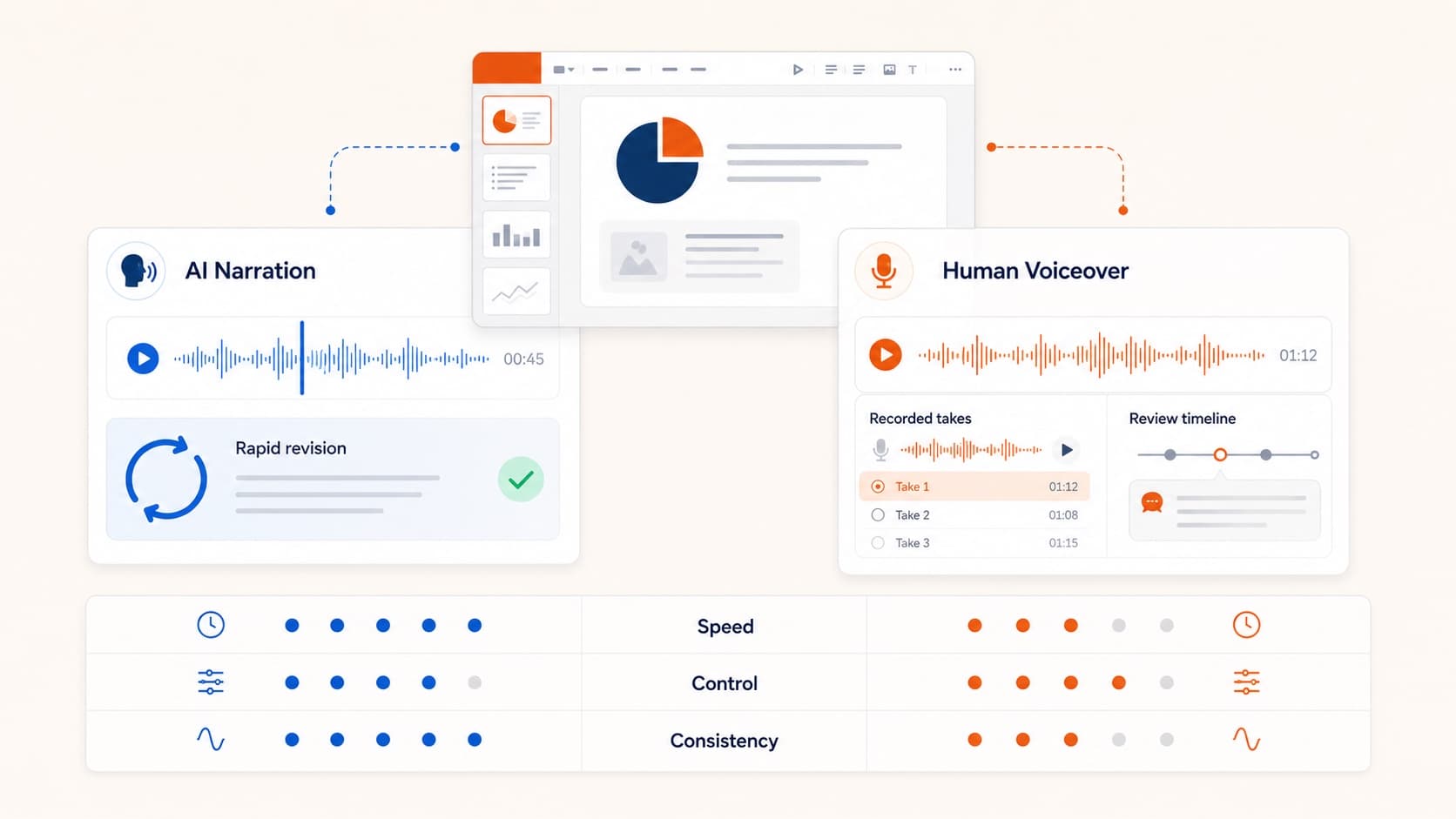
AI PowerPoint Narrator: How Slide-Aware Narration Works
An AI PowerPoint narrator should do more than read bullets. Learn how slide-aware scripts, editable voiceover, and MP4 export create reusable presentation videos.