 OralSlides Guides
Export PowerPoint as a Narrated MP4
A focused guide on going from a finished .pptx to a clean 1080p MP4 with synced narration — what to check, what to skip, and the gotchas to avoid.
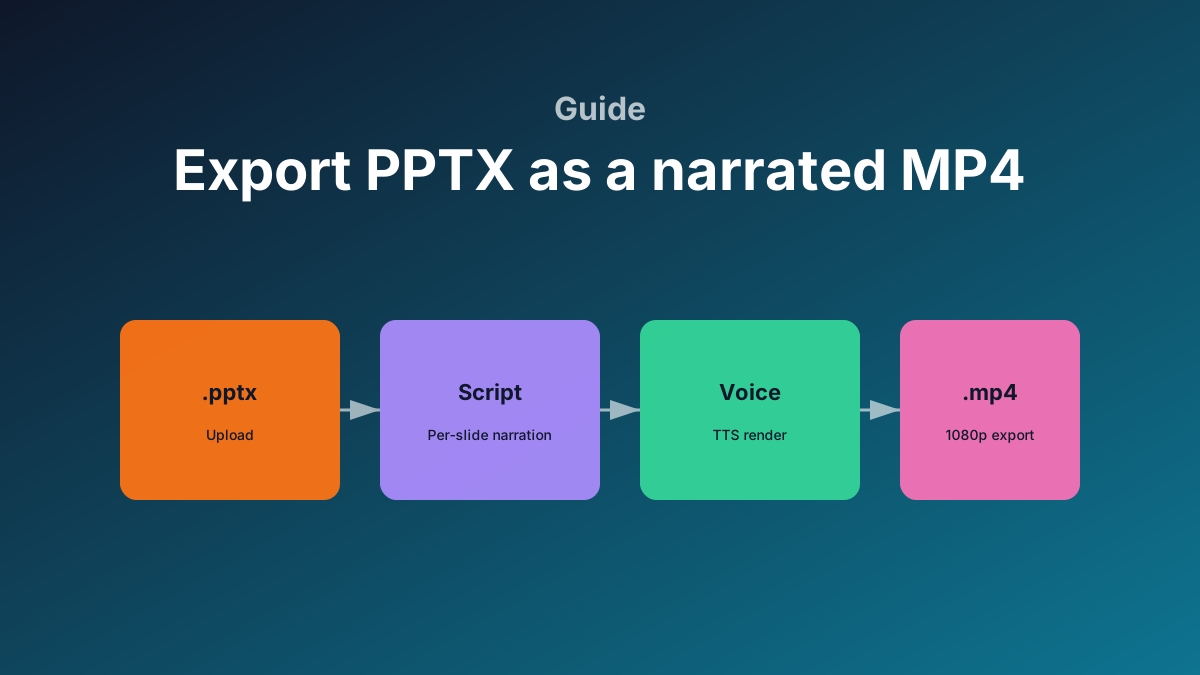
If your only goal is "I have a deck, I want a video," this is the shortest path. Skip the deeper guides if you’re in a hurry — this one is the production checklist.
Before you upload
The most common cause of a broken export is the source file, not the tool.
- Save as
.pptx(not.pptor.key). Older formats get re-encoded and lose fonts. - Embed fonts that aren’t standard (File → Save → Embed all characters).
- Flatten complex animations. The video output is one image per slide; animations will render as their final state.
- Compress images that are above 300 DPI — the deck downloads faster and parses faster.
A clean source file usually parses in under 30 seconds. Heavy decks with embedded videos take noticeably longer.
Resolution and format
OralSlides exports 1080p MP4 by default (H.264 + AAC, MP4 container). That format plays everywhere:
- LMS (Moodle, Canvas, Docebo)
- YouTube and YouTube Studio
- Slack uploads (under 1 GB), Notion embeds, email attachments under 25 MB
- Most internal video portals
If you need 720p (smaller file) or 4K (presentation hall), they’re on the roadmap. Today the single output target is 1080p — which is the right choice for ~90% of distribution.
Per-slide timing is driven by audio
There is no manual "this slide is 8 seconds" knob. The video matches each slide to its audio length. To make a slide longer, write more script. To make it shorter, cut script.
This is intentional — manual per-slide timing is fragile and breaks every time you re-render audio.
Voice locking
Once you’ve generated audio, don’t change the voice mid-project. Changing the project-level voice invalidates every per-slide audio file in storage. The next render re-generates everything from scratch and re-charges credits.
If you only want to test a different voice, use the slide-level "regenerate audio with this voice" action and compare a single slide before committing.
File names that survive download
The MP4 download uses the project title. Pick a title that includes:
- the deck topic
- a date or version (
-v3,-Apr-2026)
For example: Q3-internal-update-Apr-2026.mp4 is searchable in Slack and Drive. presentation.mp4 is not.
Captions and subtitles
There’s no built-in subtitle burn-in (yet). If you need captions:
- Export the MP4 from OralSlides.
- Upload to YouTube as unlisted — auto-captions land in 5–10 minutes.
- Edit and download the SRT.
- Re-encode with the SRT burned in (any video editor).
If you do this often, request the feature on the roadmap so we know to prioritize it.
What "completed" means
A project marked completed has all four artifacts in storage:
.pptxsource (so you can re-render later)- per-slide images (PNG, 1920×1080)
- per-slide audio (WAV)
- a single concatenated MP4
You can re-export at any time without re-uploading the deck. If the MP4 is ever deleted (e.g., from S3), the next "Export video" press recomposes from the existing per-slide assets — no re-narration needed.
Quick troubleshoot
| Symptom | Likely cause |
|---|---|
| Audio doesn’t match the slide | Script changed after audio was generated; regenerate that slide |
| Black or blank slide in video | Source slide had a video element; flatten before upload |
| Pronunciation is off on a brand name | Add a phonetic spelling in the script (e.g., "OralSlides — said O-ral, not Oh-ral") |
| Long silence between slides | Trailing whitespace in the slide script; trim and re-render |
For anything else, check the logs in the project view — every stage emits a structured error message.